This guidance takes you through how to sign into the REF 2029 Hub for the first time.
Doing this for the first time takes about 5 to 15 minutes and we recommend doing this in one go, with no interruptions.
How to sign in after that is a simpler process and is covered in this guidance.
Your password is valid for 7 days from the date we sent it to you. If you haven't been able to sign in within that time, contact usersupport@ref.ac.uk for a new password.
We highly recommend using an Incognito or Private window to do any REF-related work.
If you have any problems with this process, we recommend closing your browser window and starting again with a new Incognito or Private browser window.
If the issues persist, contact usersupport@ref.ac.uk.
- Go to https://ref29.sharepoint.com/
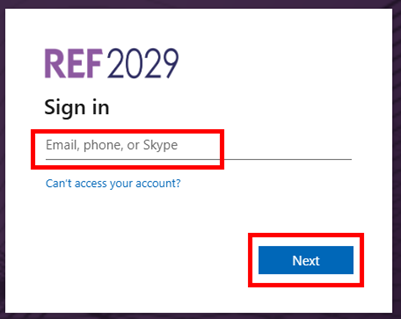
- This Sign in box will appear.
- Enter your REF email address, (we sent you an email with these details)
- Click on Next
| 
|
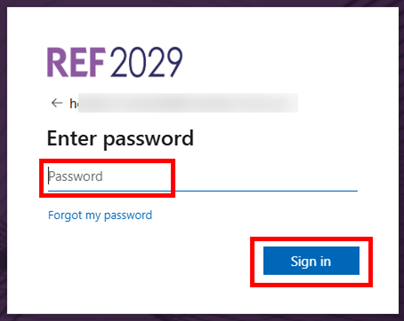
- Enter the password we have sent you
- Click on Sign in
|  |
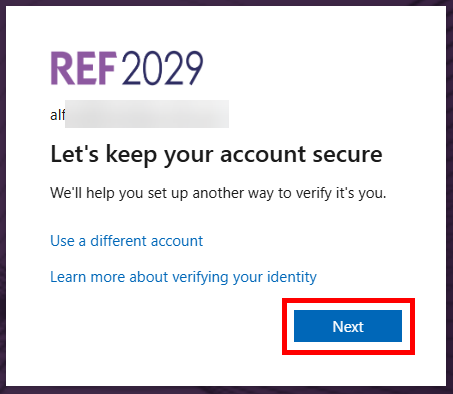
- When this message appears, click on Next
| 
|
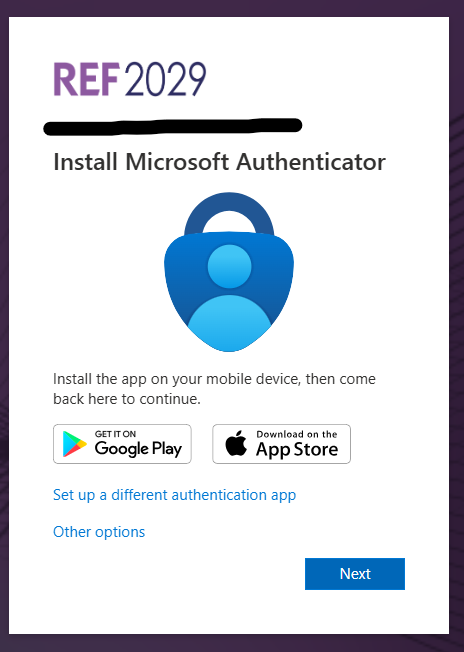
- After a few seconds, this message will appear
- Follow the instructions below
| 
|
At this stage you need to select a second level of authentication which you will use every time you sign in.
The two available methods are:
- Use the Microsoft Authenticator app on your mobile phone
- Use an alternative authenticator app on your mobile phone
How to set up each method is described below. Once you've decided on a method please follow the relevant guidance below.
Use the Microsoft Authenticator app on your mobile phone
This method uses the Microsoft Authenticator app on your mobile phone.
If you don’t already have the Microsoft Authenticator app installed you will need to download it to your phone. Once you have the app on your phone, follow the instructions in the table below.
If you already have the Microsoft Authenticator app on your mobile phone, follow the instructions in the table below.
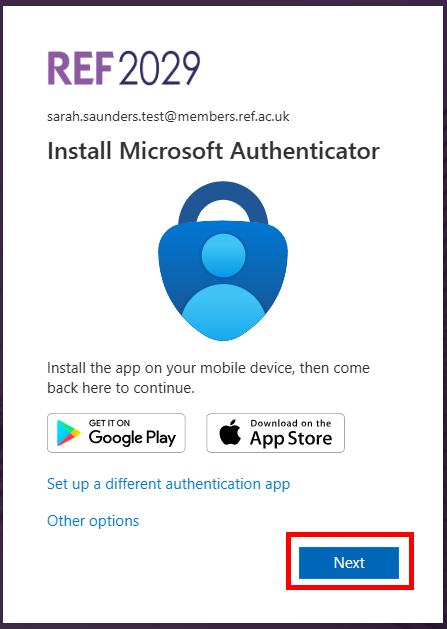
- On your computer screen, click on Next
| 
|
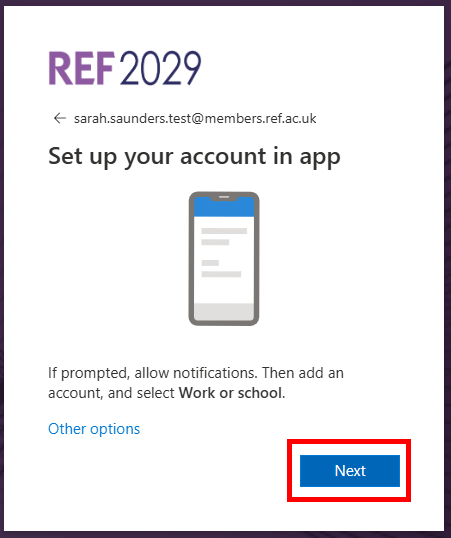
- Open the Microsoft Authenticator app on your phone
- If prompted, allow notifications
- Tap on the + to add an account
- Tap on Work or school account
- Tap on Scan QR code – this will open your camera within the Authenticator app
- On your computer screen, click on Next
| 
|
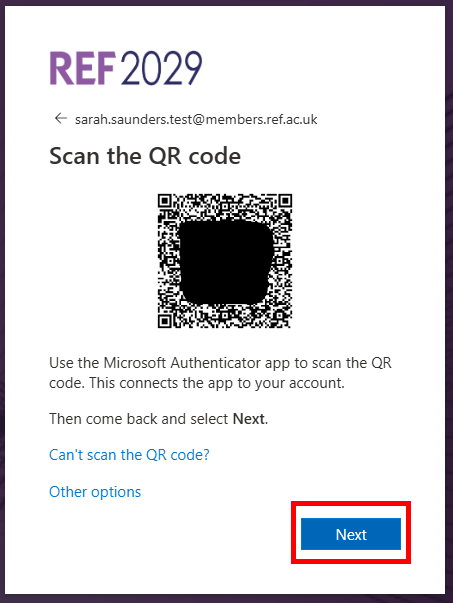
- Hold your phone up to scan the QR code on your computer screen
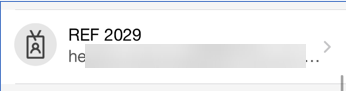
- After a few seconds a REF 2029 account will appear in your Authenticator app like this, (on your mobile)
- Do not continue to the next step in these instructions until your account has appeared in the Authenticator app on your mobile
| 
|
- On your computer screen, click on Next
| 
|
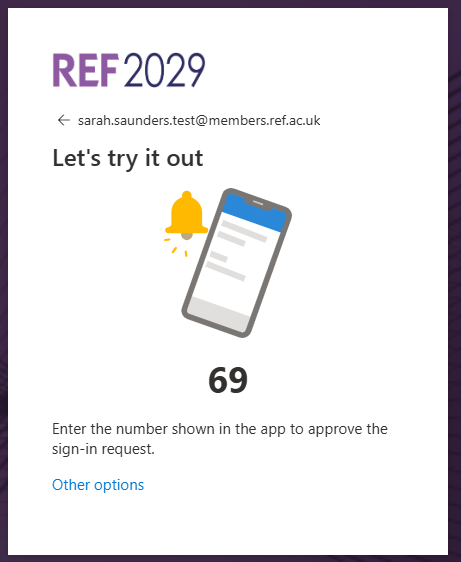
- A number will appear on your computer screen, like this
- A prompt will appear on your mobile phone
- Enter the number in to your mobile phone and tap Yes
- Follow any instructions on your mobile phone to authenticate yourself
| 
|
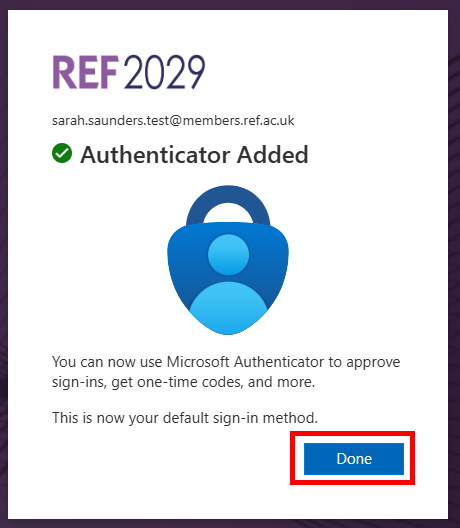
- When the Authenticator Added message appears, click on Done
|  |
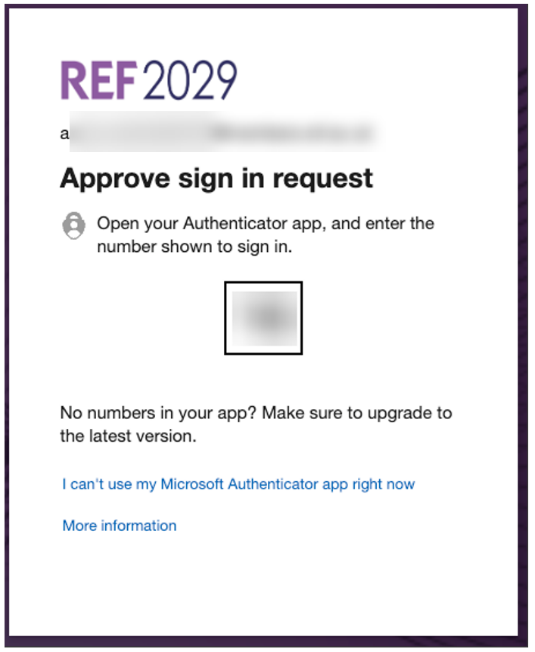
- You should get a notification on your mobile phone (it doesn’t matter if you don’t)
- Open the authenticator app on your mobile phone
- On your mobile phone, type in the number that appears on your computer screen, just as you did a few steps ago
- Tap on Yes
- This is how you will authenticate yourself each time you sign in to your REF account.
|
 |
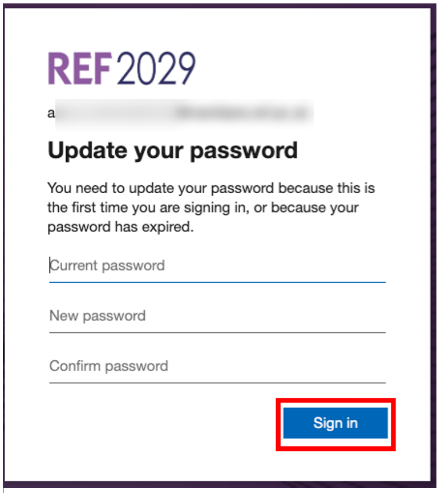
- Type in your current password (this is the one we sent to you)
- Type in your new password
- Type in your new password a second time to confirm it
- Click on Sign in
- Your password must be at least eight characters long and must contain three of the following:
- Uppercase letter
- Lowercase letter
- Number
- Symbol
| 
|
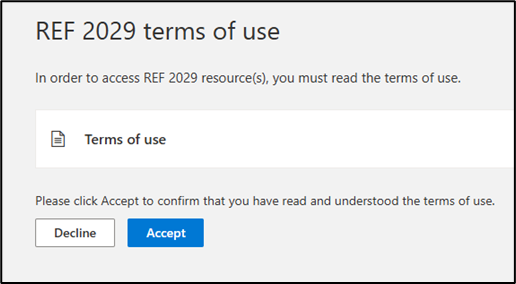
- You now need to read and accept our terms of use of the REF account
- Click on Terms of use and read through the document
- Once you have read and understood the terms of use scroll down and click on Accept
|  |
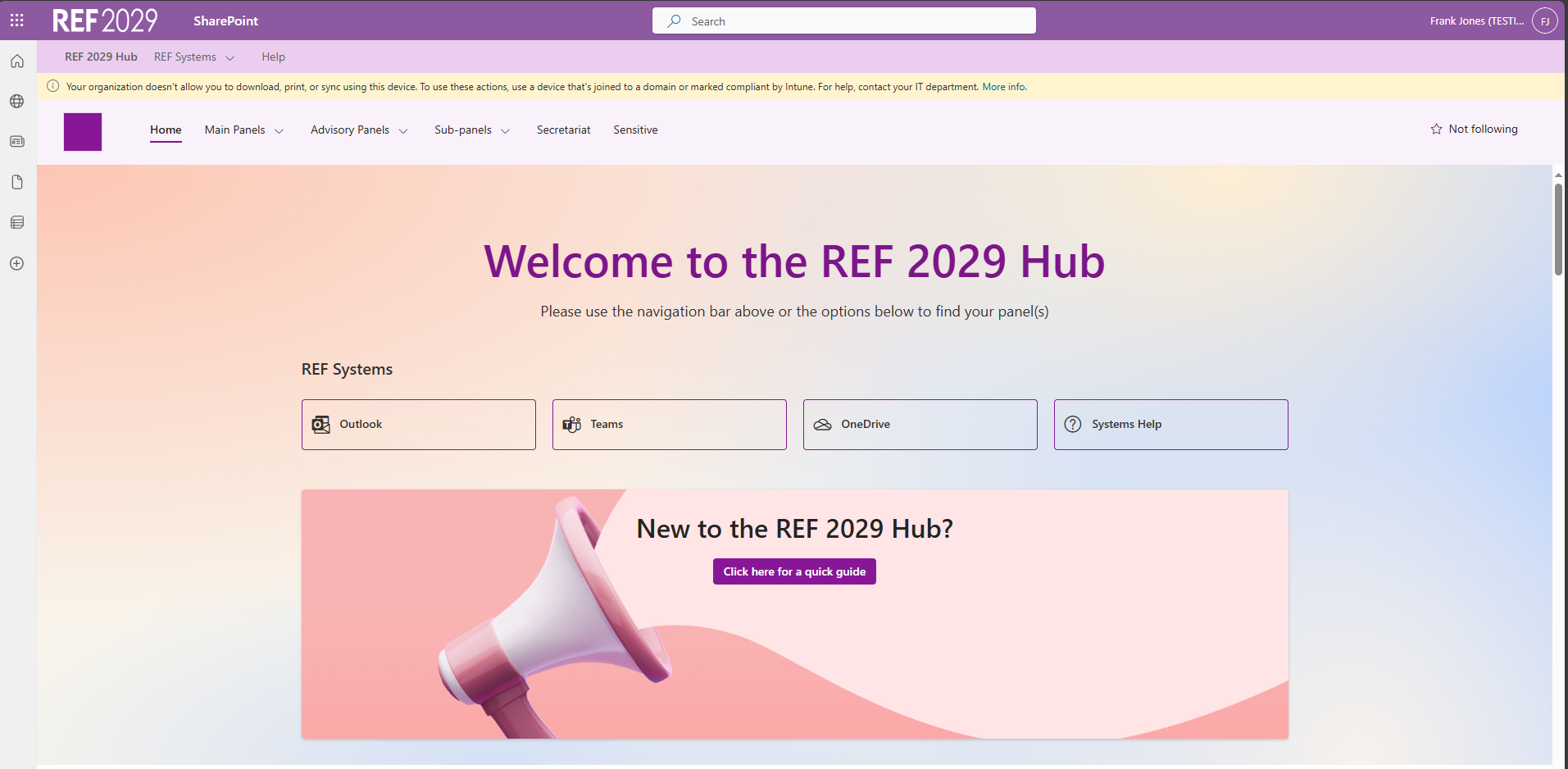
- Once you see the REF Hub you are signed into your REF account
| 
|
If you have any problems with this process, we recommend closing your browser window and starting again with a new Incognito or Private browser window.
If the issues persist, contact usersupport@ref.ac.uk.
Use an alternative authenticator app
This method uses an alternative authenticator app on your mobile phone, (anything other than the Microsoft Authenticator app). If you already use a different authenticator app on your mobile phone, you can use that to authenticate yourself.
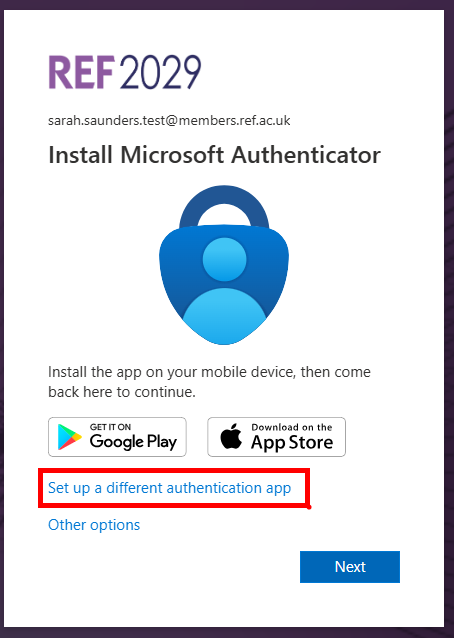
- On your computer screen, click on Set up a different authenticator app
| 
|
- Open your authenticator app on your phone
- Tap to add a new account, (how you do this will depend on which authenticator app you are using)
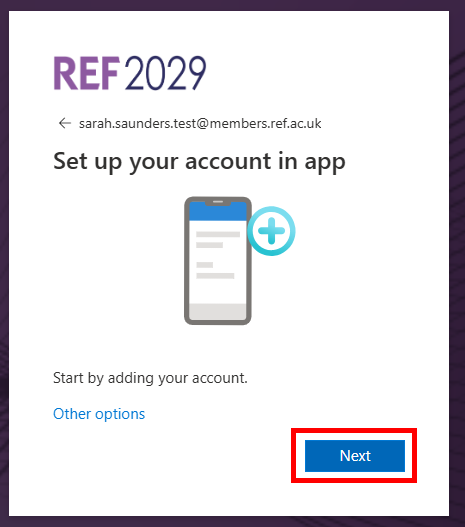
- On your computer screen, click on Next
| 
|
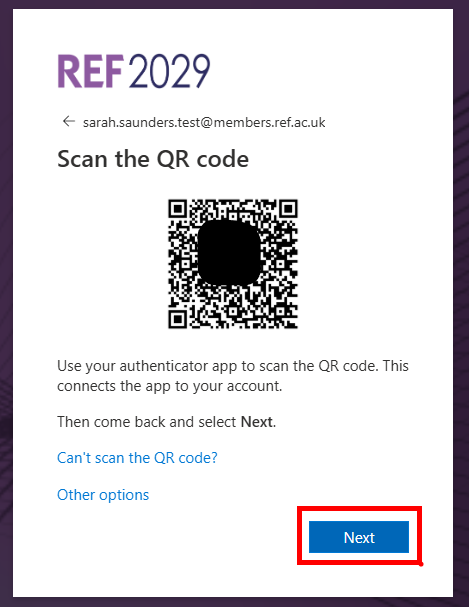
- Hold your phone up to the QR code on your computer screen
- After a few seconds a REF 2029 account will appear in your authenticator app, (on your mobile)
- On your computer screen, click on Next
| 
|
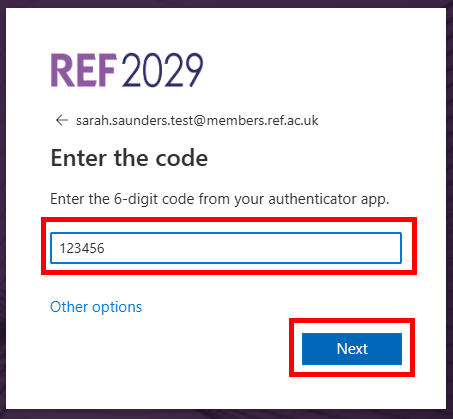
- Open the authenticator app on your mobile phone and find the six-digit code for your REF account
- Enter the six-digit code on to your computer screen. The code will change every 30 seconds so make sure you enter the code straight away
- Once the check is finished click on Next
| 
|
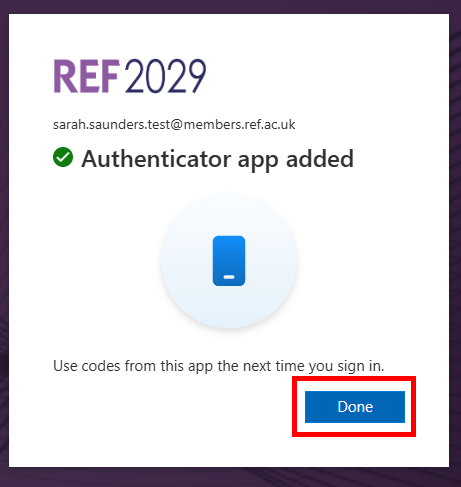
- When this message appears click on Done
| 
|
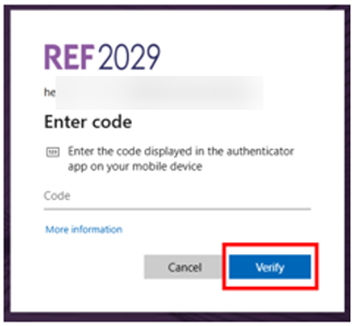
- Open the authenticator app on your phone
- In the authenticator app, find the six-digit code for your REF account
- On your computer, type in that six-digit number, (it does change every 30 seconds)
- Click on Verify
- You will use the authenticator app every time you sign into your REF account
| 
|
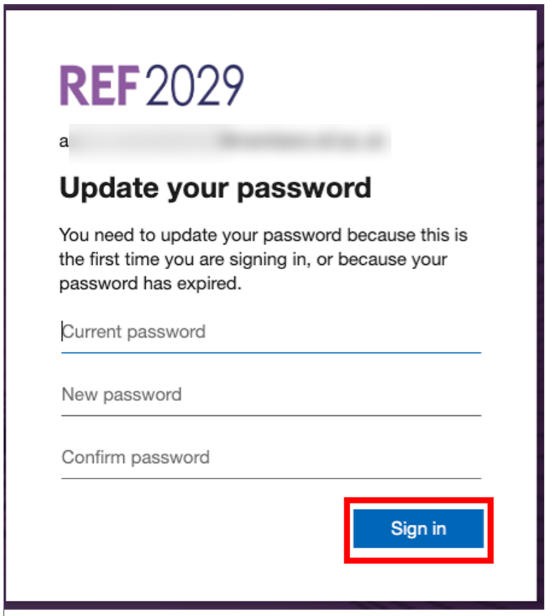
- Type in your current password (this is the one we sent to you)
- Type in your new password
- Type in your new password a second time to confirm it
- Click on Sign in
- Your password must be at least eight characters long and must contain three of the following:
- Uppercase letter
- Lowercase letter
- Number
- Symbol
|
|
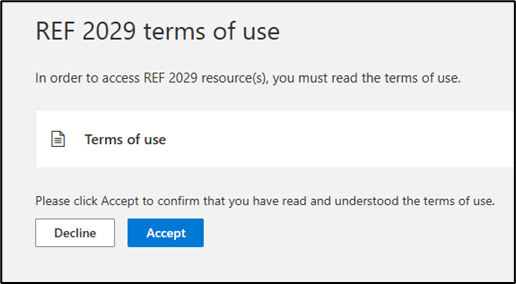
- You now need to read and accept our terms of use of the REF account
- Click on Terms of use and read through the document
- Once you have read and understood the terms of use scroll down and click on Accept
| 
|
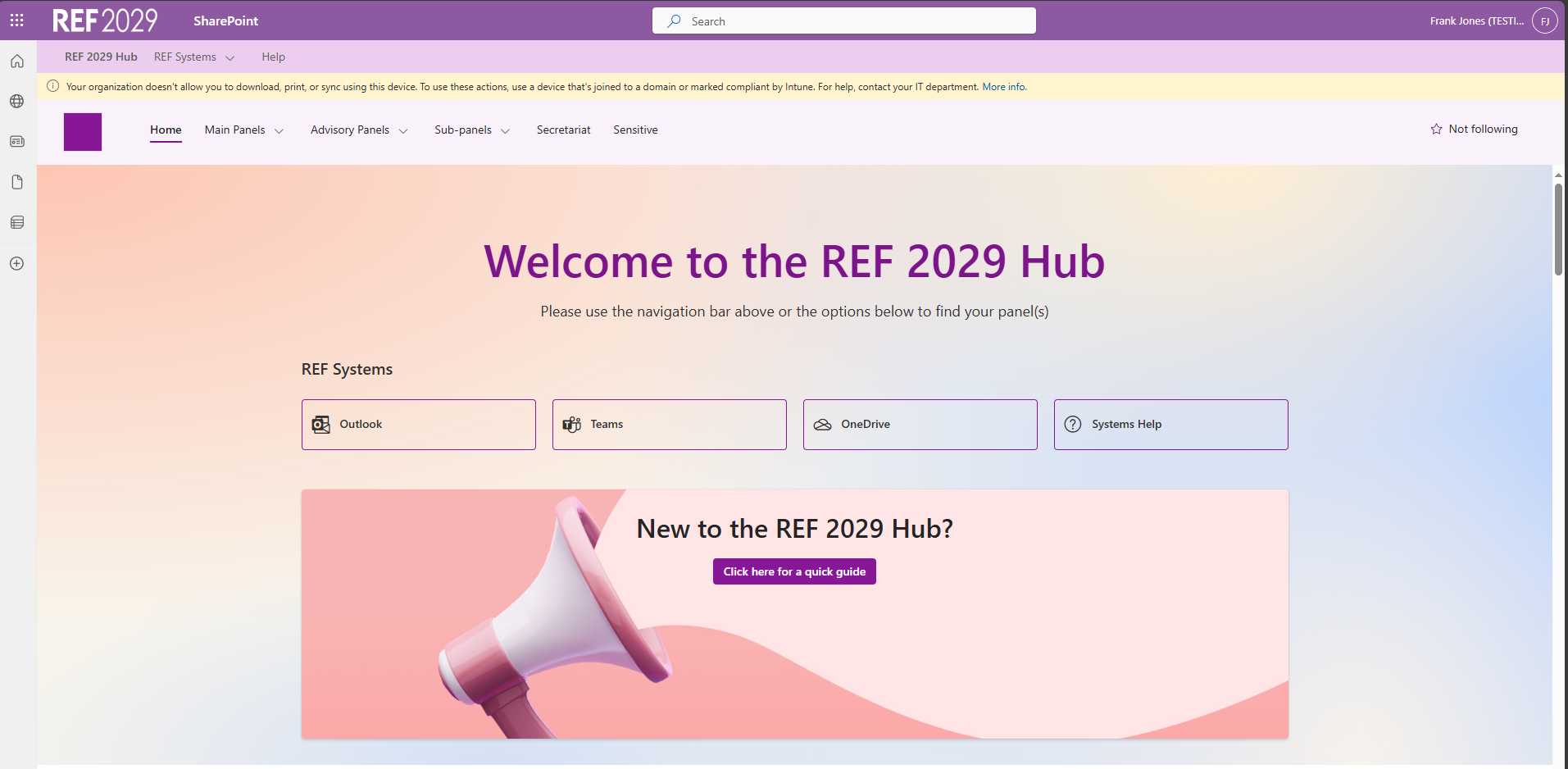
- Once you see the REF Hub you are signed into your REF account
|  |
If you have any problems with this process, we recommend closing your browser window and starting again with a new Incognito or Private browser window. If the issues persist, contact usersupport@ref.ac.uk.
We want to make these articles as helpful as possible so please use the Yes/No buttons below to send us feedback.