You can now share a read-only copy of your REF Hub calendar with external accounts that are not within the REF Hub. These external accounts will only be able to see meeting dates/times, titles, and locations and will not be able to make any changes to your REF Hub calendar (accept/decline meetings, etc.).
You can share your REF calendar with multiple external accounts at the same time.
You will still need to follow this process to join Teams meetings in the REF Hub.
| 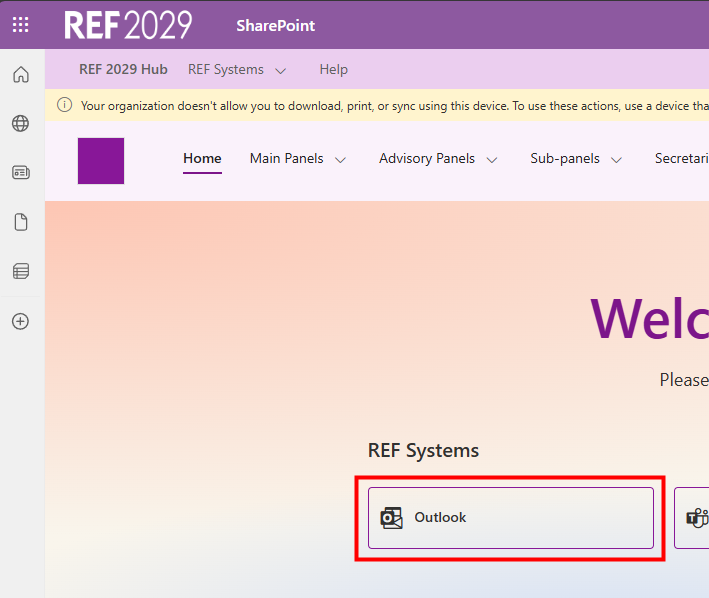 |
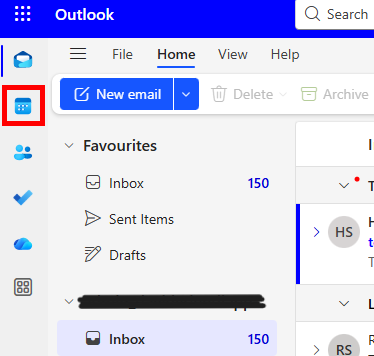
- In Outlook, click on the Calendar icon in the left-hand side menu
|  |
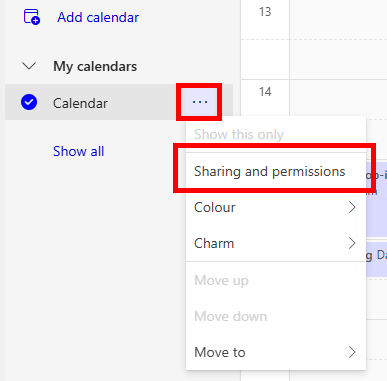
- On the Calendar page, go to the list of Calendars on the left, and click the three dots next to your calendar
- In the pop-up menu, click on Sharing and permissions
|  |
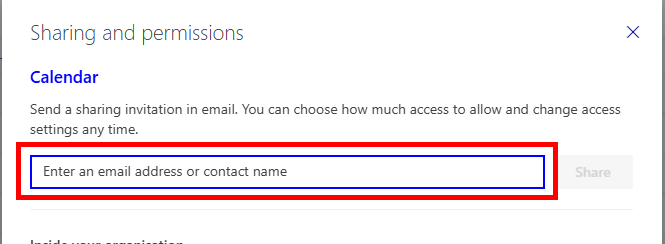
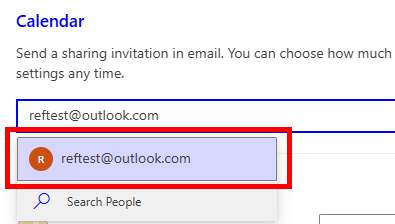
- In the window that opens, enter the email address you would like to share your REF calendar with in the field at the top
- Once you have typed in the entire email, select it from the drop-down below the field
| 
|
- Once you have typed in the entire email, select it from the drop-down below the field
- Wait for the validation message to process and disappear
|  |
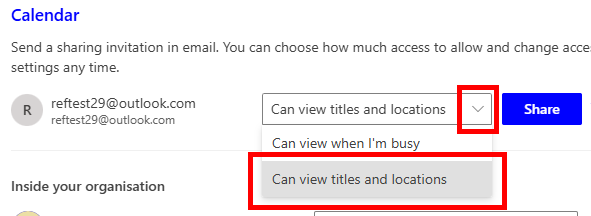
- In the field next to your external email address, click the down arrow
- In the drop-down menu, select Can view titles and locations
|  |
- Click the Share button beside the permissions field
| 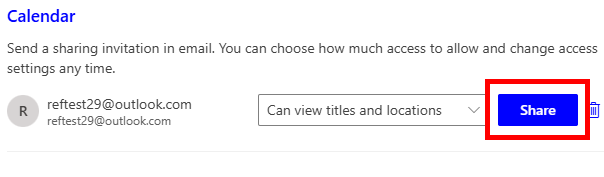 |
- A loading icon will appear next to the Share button for a little while
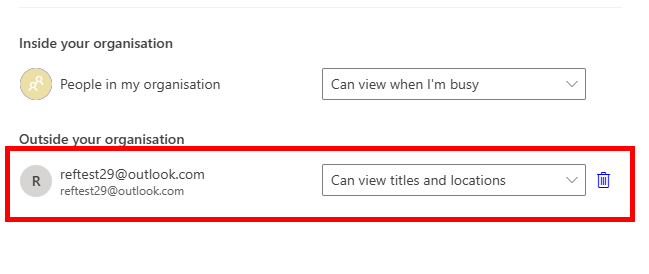
- Once the sharing invitation is sent, a new entry will appear in the pop-up window under the heading Outside your organisation
|  |
There is a different process for adding your REF calendar to your personal/institutional calendar depending on whether you use Outlook (Microsoft 365), Google Calendar, or Apple Calendar so please follow the relevant section below.
If you use a different mail provider, such as Proton Mail, please get in touch with usersupport@ref.ac.uk and we will happily assist with adding your REF calendar.
Outlook
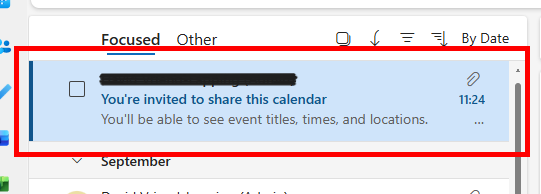
- In your inbox, you should see an email from your REF email address titled You're invited to share this calendar
- If you cannot see this email, check your Junk, Spam, and/or Quarantine folders
- Open this email
|  |
- Click the Add this calendar button at the bottom of the email
| 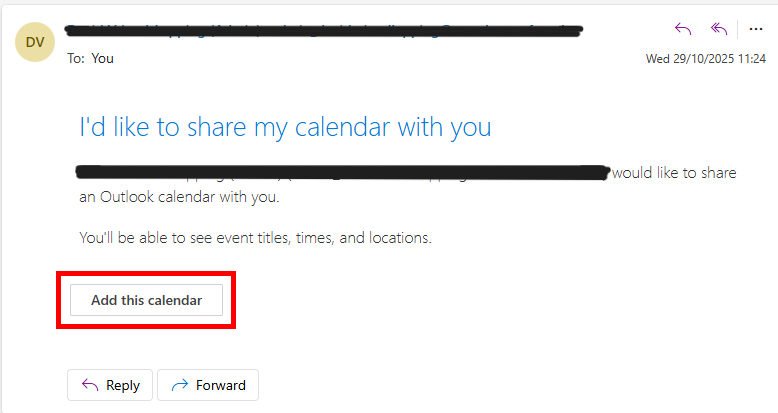 |
- The button will change to say Adding calendar for a short while
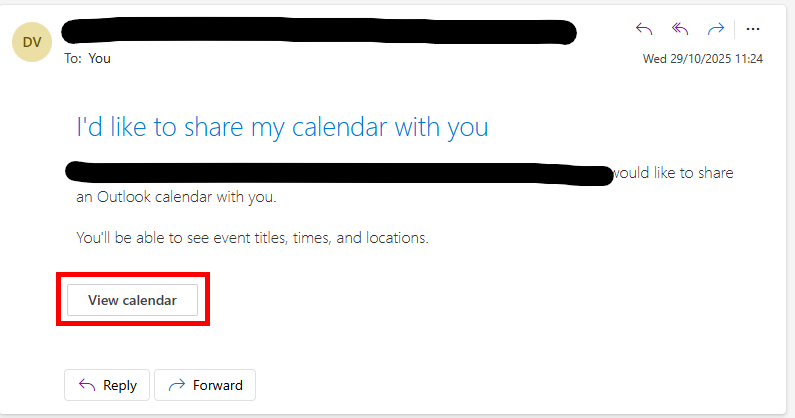
- Once it has changed to say View calendar, proceed to the next step
|  |
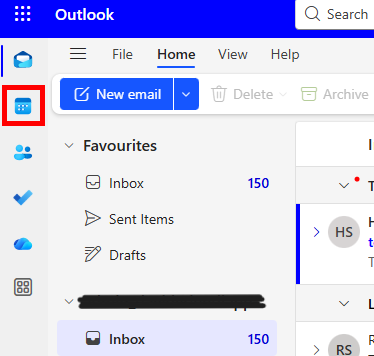
- To view your REF Calendar, click the Calendar icon on the left-hand side menu
|  |
- On the Calendar page, go to the list of Calendars on the left, and find the heading Other calendars or People's calendars (you may need to click Show all to see these headers)
- Under this heading, there will be a calendar with your REF account name
| 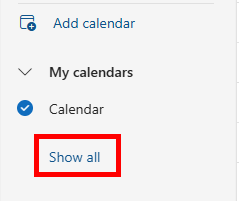 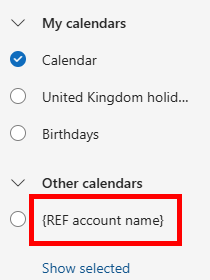 |
- To view this calendar, click the tick box next to your REF account name, and it will appear in the Calendar viewer window next to your main personal/institutional calendar
NOTE: Your REF calendar can take up to 24 hours to sync, so it may appear blank when you first add it. If your REF calendar still appears blank after 24 hours, please get in touch with usersupport@ref.ac.uk | 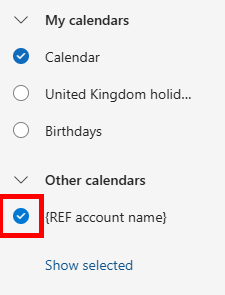 |
Google Calendar
- In your inbox, you should see an email from your REF email address titled You're invited to share this calendar
- If you cannot see this email, check your Junk, Spam, and/or Quarantine folders
- Open this email
| 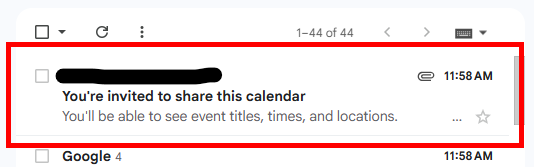 |
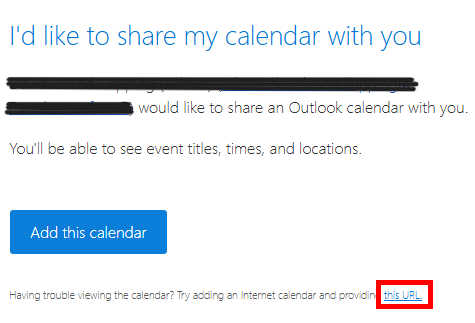
- In the small print at the bottom of the email, there will be a line that ends in a hyperlink titled this URL
|  |
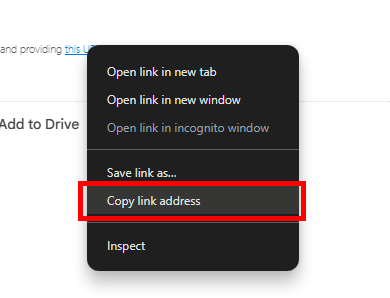
- Right-click on this link and select Copy link address
|  |
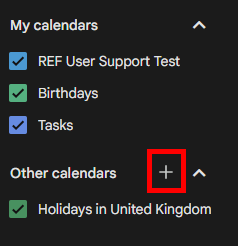
- Open your Google Calendar, and on the calendars menu on the left, click the + icon next to the Other calendars header
|  |
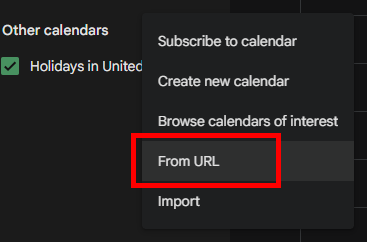
- In the drop-down list, select From URL
|  |
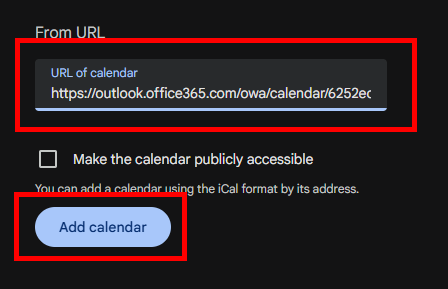
- In the page that opens, paste (Ctrl + V on Windows, command + V on Mac) the URL copied from the calendar sharing email in the URL field
- After pasting the URL, click Add calendar
|  |
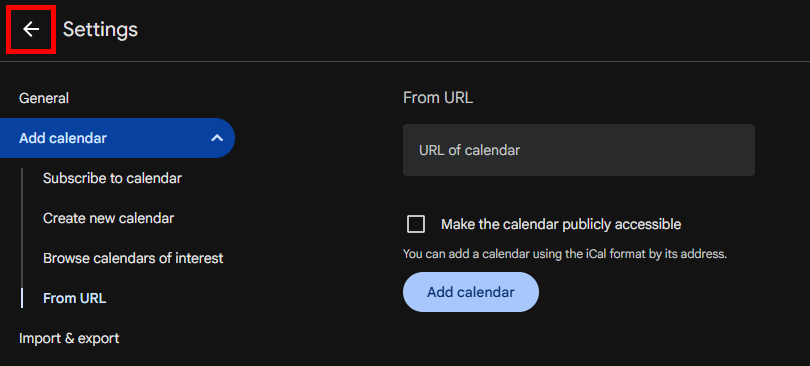
- The URL will disappear after a short while, once it does, click the Back arrow on the top-right of the screen
|  |
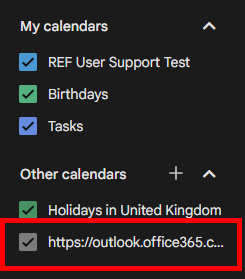
- In the calendars menu on the left, there will be a new calendar titled either Calendar or a URL beginning with https://outlook.office365.com/, this is your REF calendar
|  |
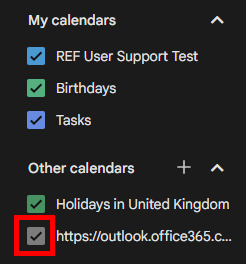
- By default, your REF calendar will now be visible on your main Calendar window in the colour of the tick box next to it
- To toggle the visibility of your REF calendar, click the tick box next to your REF calendar name
NOTE: Your REF calendar can take up to 24 hours to sync, so it may appear blank when you first add it. If your REF calendar still appears blank after 24 hours, please get in touch with usersupport@ref.ac.uk
| 
|
Apple Calendar
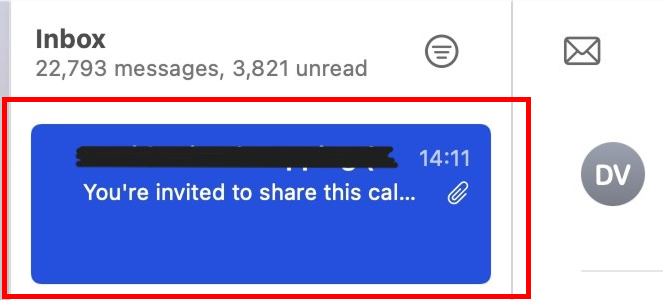
- In your inbox, you should see an email from your REF email address titled You're invited to share this calendar
- If you cannot see this email, check your Junk, Spam, and/or Quarantine folders
- Open this email
|  |
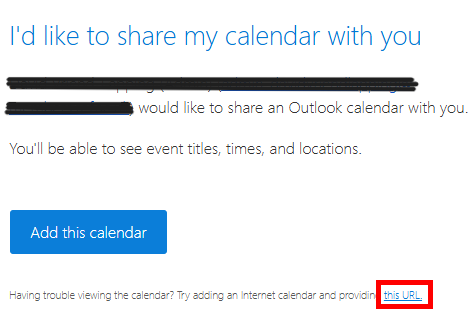
- In the small print at the bottom of the email, there will be a line that ends in a hyperlink titled this URL
|  |
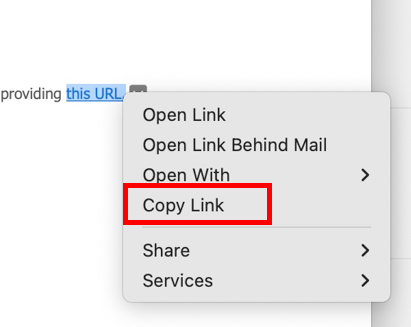
- Right-click on this link and select Copy Link
|  |
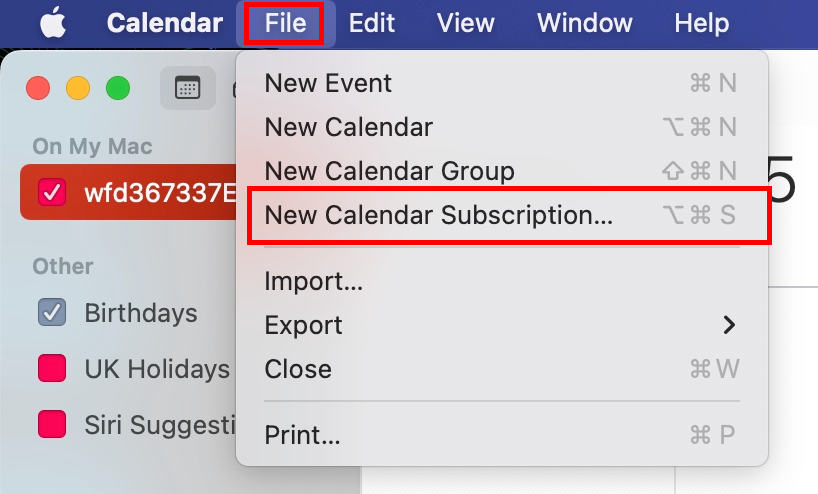
- Open the Apple Calendar app, and in the top menu bar, select File
- In the drop-down menu, select New Calendar Subscription
|  |
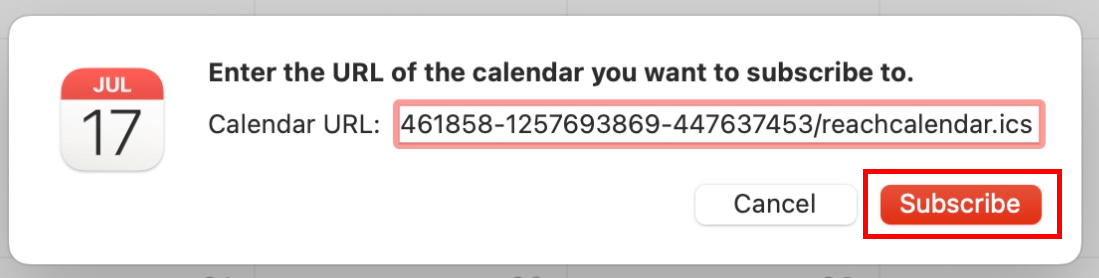
- In the window that opens, paste (command + V) the copied URL into the Calendar URL field
- Next, click Subscribe
|  |
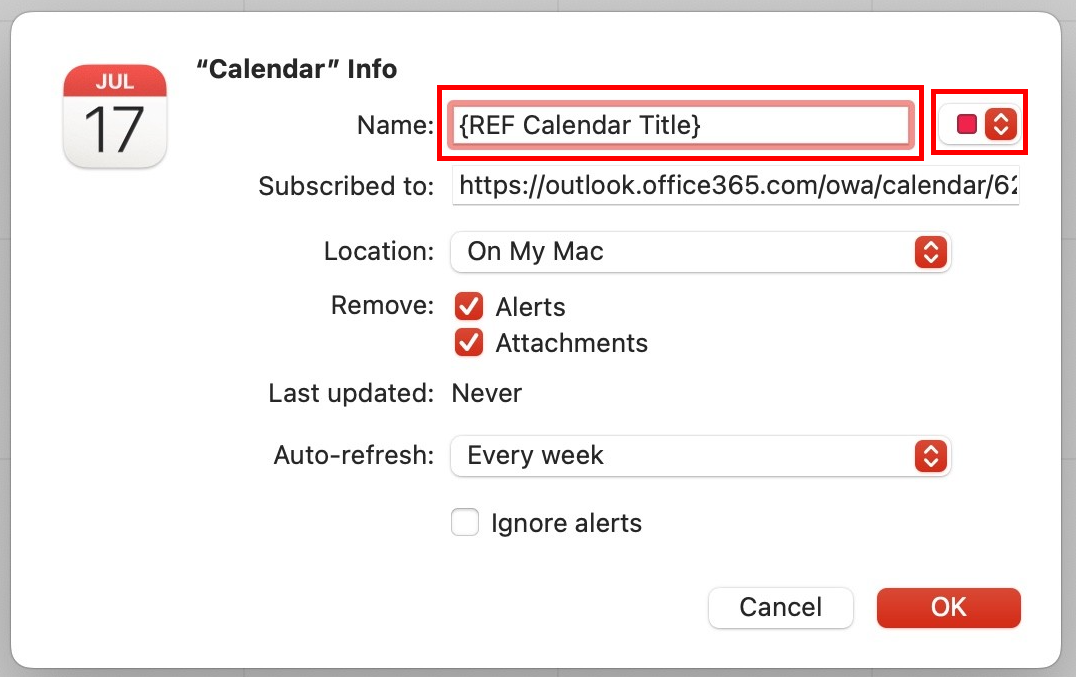
- In the next window, please fill in the name you would like to appear on your REF Calendar, and the colour you would like it to be
|  |
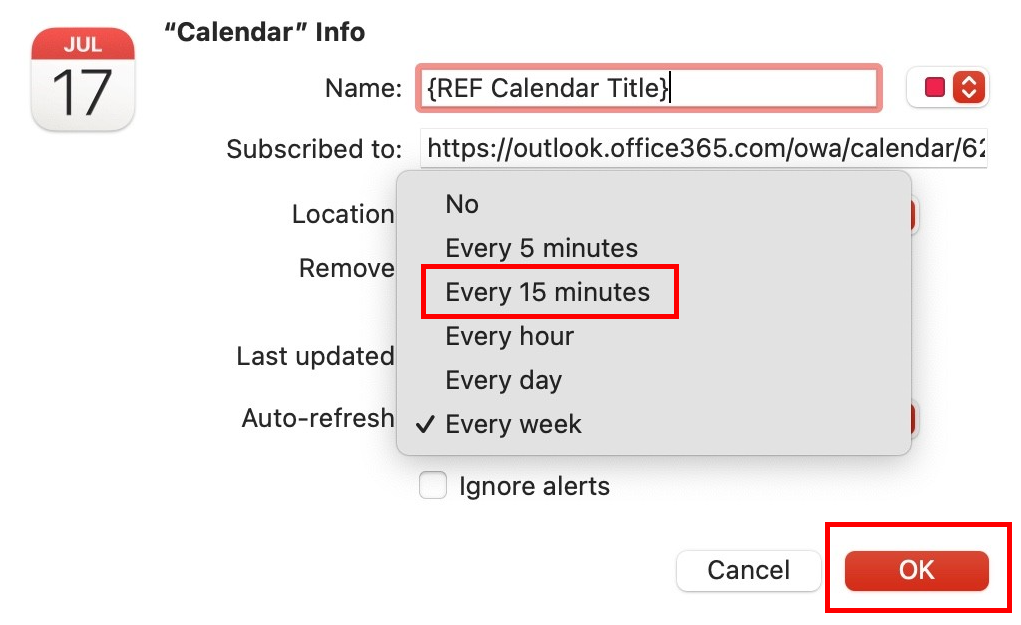
- Click on the Auto-refresh field and select Every 15 minutes
- Next, click OK
|  |
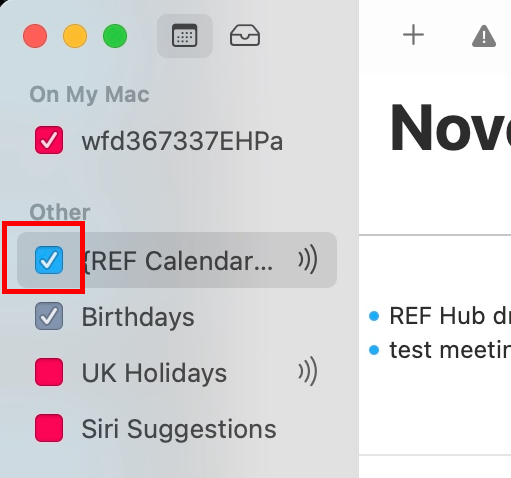
- Your REF Calendar will now appear on the menu on the left-hand side of the Calendar app
- Its visibility can be toggled on and off with the tick box next to the Calendar name
NOTE: Your REF calendar can take up to 24 hours to sync, so it may appear blank when you first add it. If your REF calendar still appears blank after 24 hours, please get in touch with usersupport@ref.ac.uk
|  |
We want to make these articles as helpful as possible so please use the Yes/No buttons below to send us feedback.