If this is the first time you are signing into your REF account, please follow the guidance for signing in for the first time.
This guidance takes you through how to sign into your REF 2029 account.
We highly recommend using an Incognito or Private window to do any REF-related work.
If you have any problems with this process, we recommend closing your browser window and starting again with a new Incognito or Private browser window. If the issues persist contact usersupport@ref.ac.uk.
| |
|
|
| |
| |
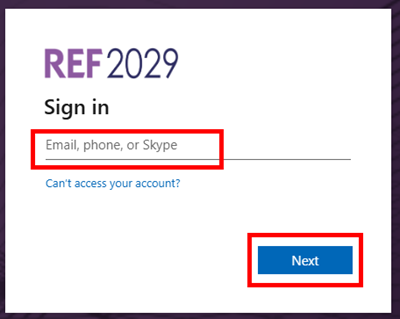
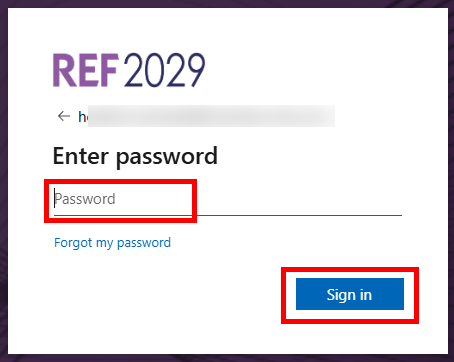
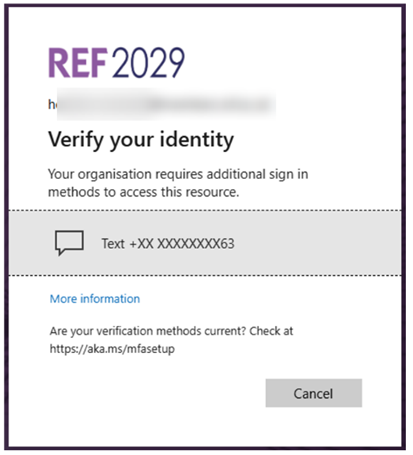
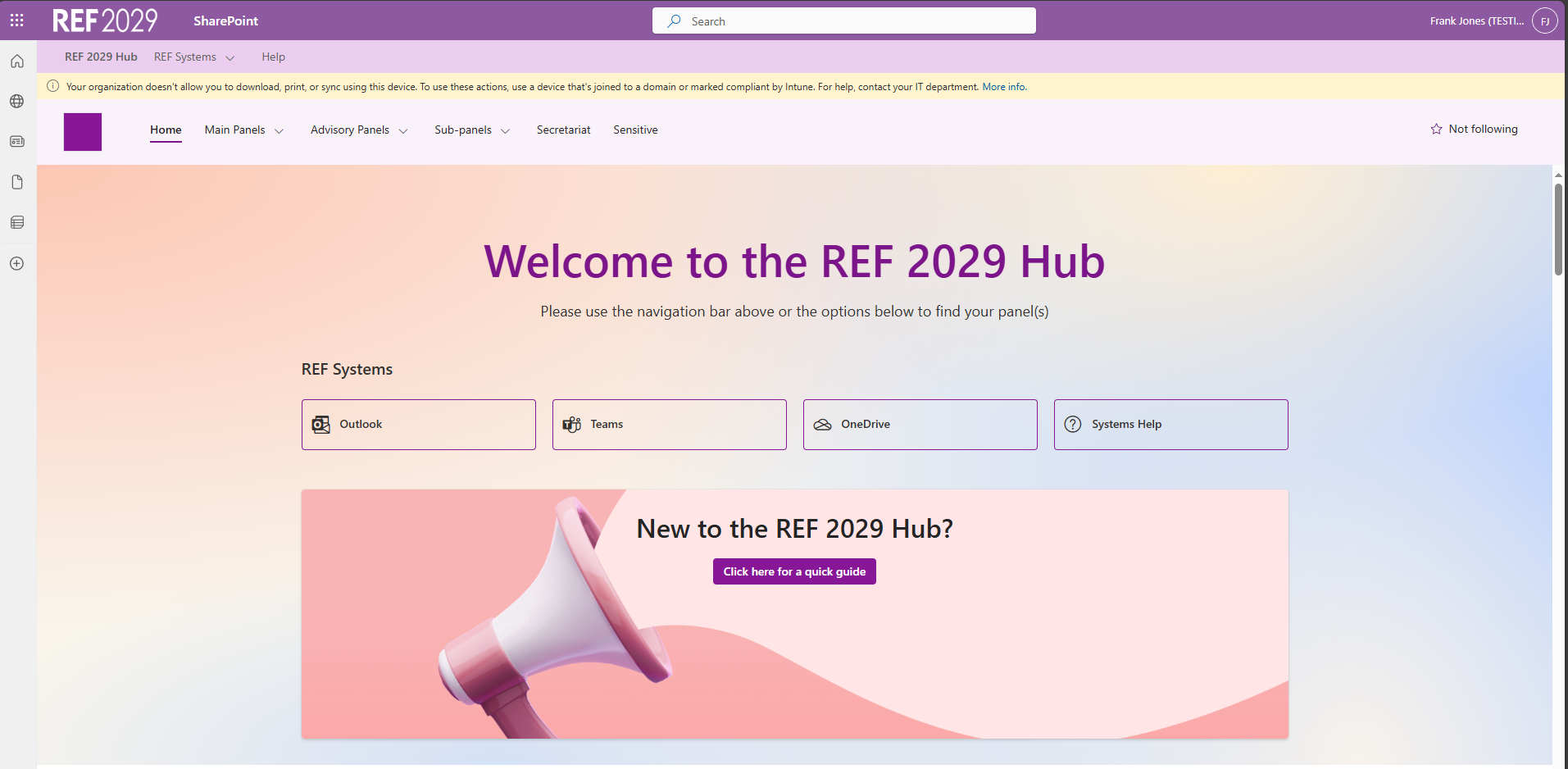
If you have any problems signing in, we recommend closing your browser window and starting again with a new Incognito or Private browser window. If the issue persists, please contact usersupport@ref.ac.uk.
We want to make these articles as helpful as possible, so please use the Yes/No buttons below to send us feedback.
Was this article helpful?
That’s Great!
Thank you for your feedback
Sorry! We couldn't be helpful
Thank you for your feedback
Feedback sent
We appreciate your effort and will try to fix the article