How to find the files/agenda for meetings or any shared files

Modified on Wed, 24 Sep at 1:37 PM

The agenda and related files for any panel meeting will be saved within SharePoint on the REF Hub so you can easily access them. Other shared files may also be saved in the same area. 


There are several ways of accessing the files but each route leads to the same area/files. 


If, at any stage, you click on an area that you do not have access to, you will see the Access Denied message


Route 1 - from the Hub

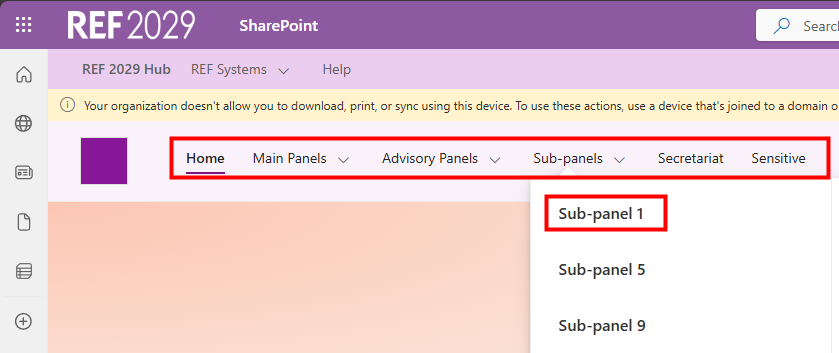
  • Sign in to the REF Hub
  • Click on the relevant link on the menu bar
  • If applicable, click on the relevant item on the sub-menu that appears
    • For example, if you were a member of sub-panel 1 you would click on Sub-panels and then Sub-panel 1
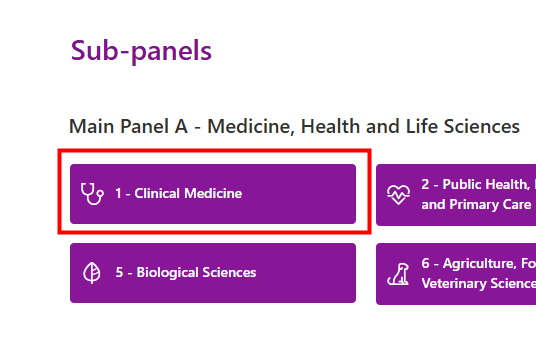
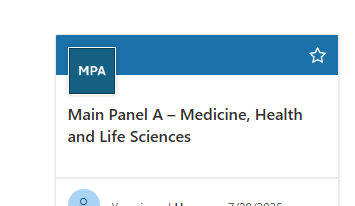
  • You can also click on the relevant button for the panel/sub-panel
  • We've shown two examples here 
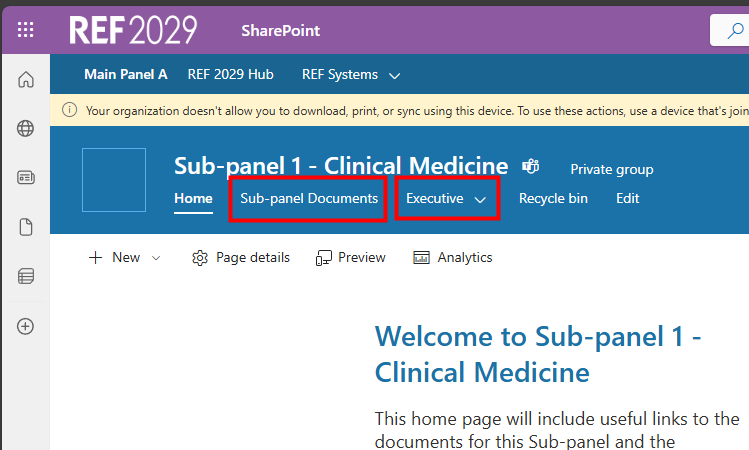
  • This will open a new tab with the home page for that panel/sub-panel
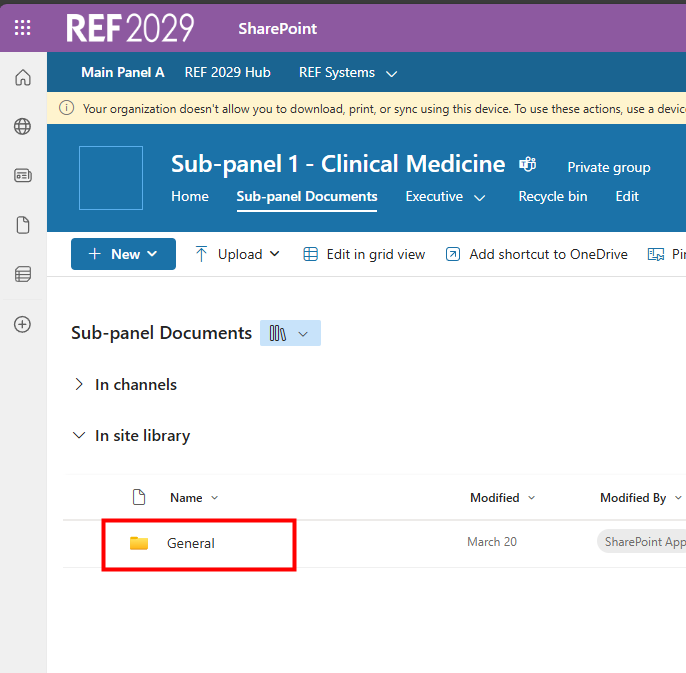
  • There are links at the top for Sub-panel Documents and another for the Executive
    • Click on the relevant link  
  • This will take you to the relevant SharePoint area
  • Click on General
  • You will now see a folder for each meeting. 
  • Click on the relevant folder to open it and you will then see the agenda and documents for that meeting
  • Click on any file to open it
  • If you want to save your own copy of a file, for example to make notes, please save a copy to your My Files area.


Route 2 - from OneDrive

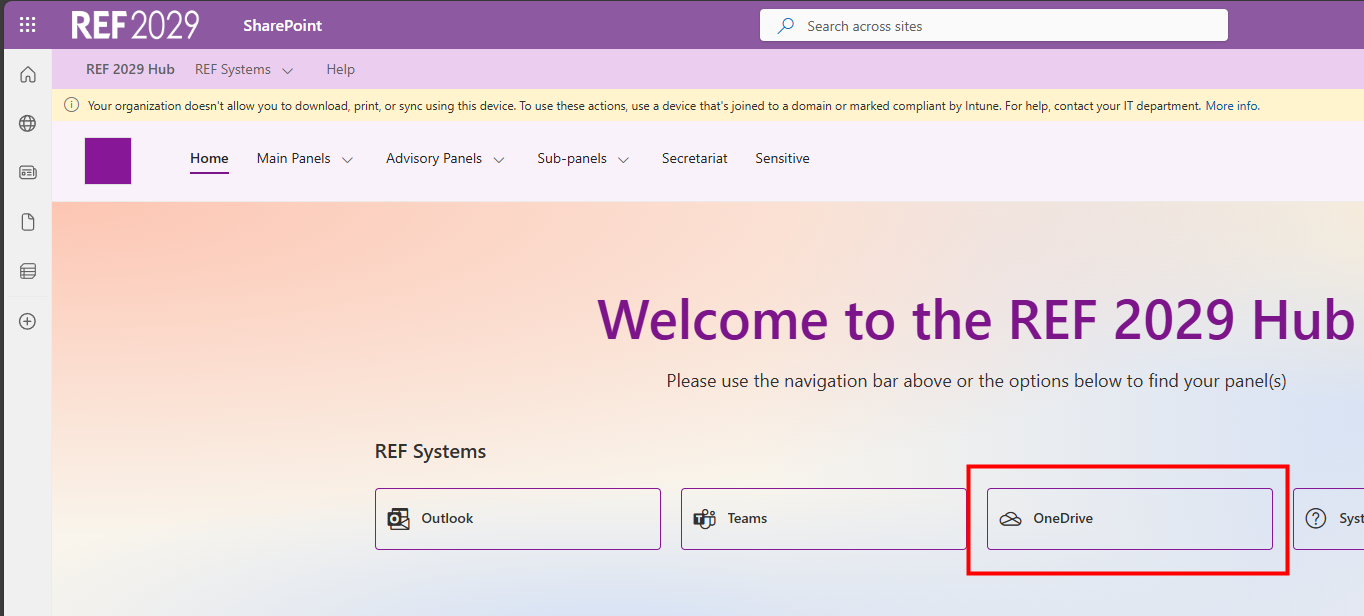
  • Sign in to the REF Hub 
  • Click on OneDrive
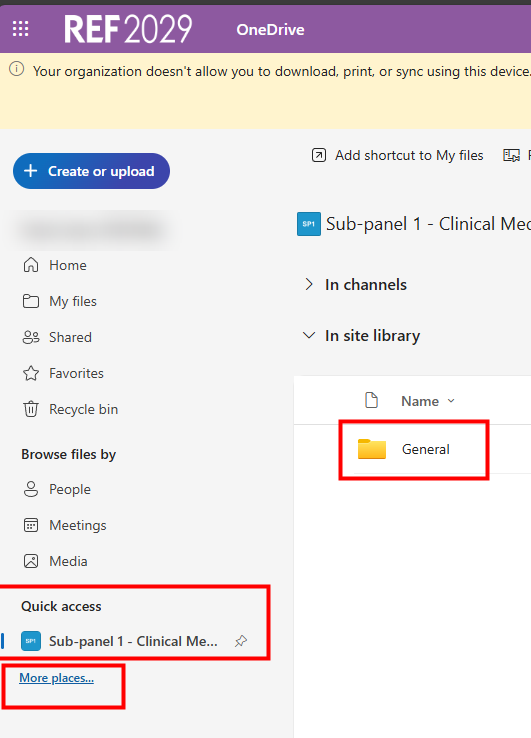
  • A OneDrive window will open in a new tab

  • Click on the relevant link in the Quick access area
  • If there isn't anything listed, click on More places...
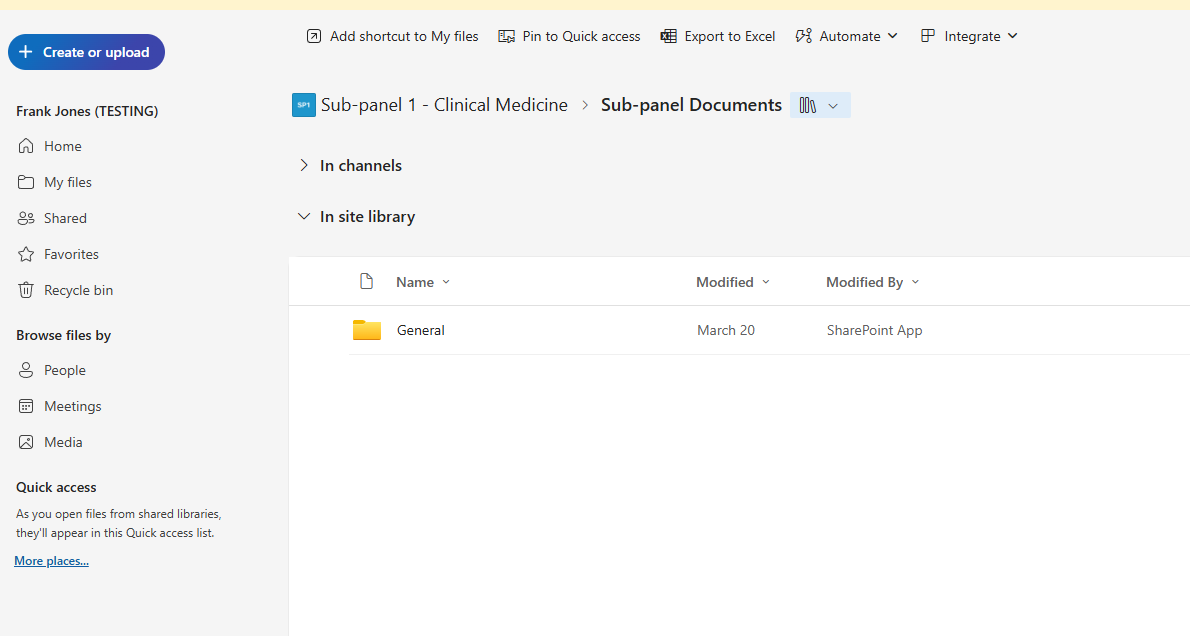
  • You will then see any panels/sub-panels you are a member of; click on the panel/sub-panel. This link will then be added to the Quick access area
  • You will then see the file area for that panel/sub-panel
  • You will now see a folder for each meeting. 
  • Click on the relevant folder to open it and you will then see the agenda and documents for that meeting
  • Click on any file to open it
  • If you want to save your own copy of a file, for example to make notes, please save a copy to your My Files area.


Route 3 - from Teams

  • Sign in to the REF Hub
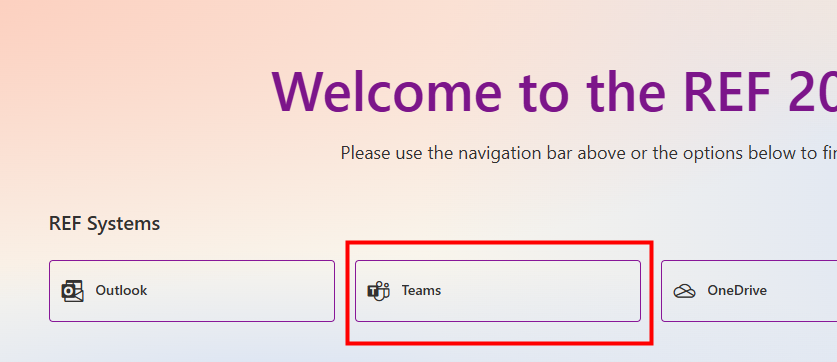
  • Click on the Teams link

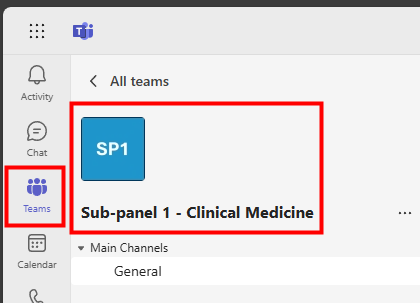
  • Click on the Teams section
  • Check you are in the right team
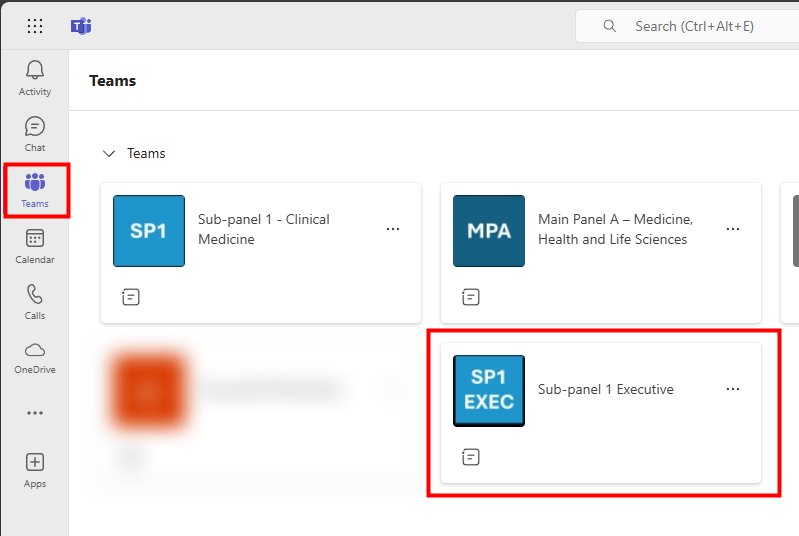
  • If you are not in the right team, click on the Teams section again
  • Then click on the panel/sub-panel/area you want 

(If you are a sub-panel member then you may only have one area listed here)

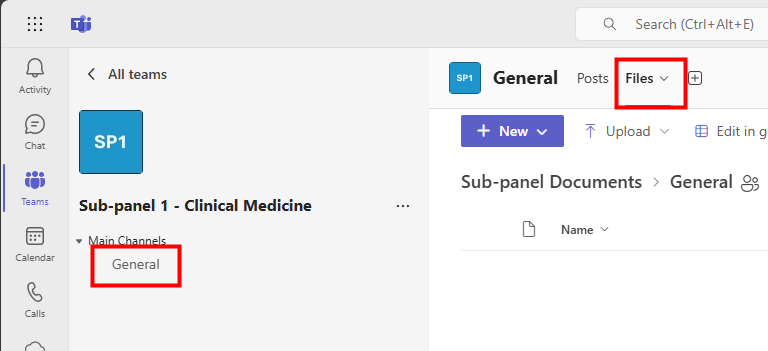
  • Click on the General channel
  • Click on Files, near the top of the window
  • You will now see a folder for each meeting. 
  • Click on the relevant folder to open it and you will then see the agenda and documents for that meeting
  • Click on any file to open it
  • If you want to save your own copy of a file, for example to make notes, please save a copy to your My Files area.


We want to make these articles as helpful as possible so please use the Yes/No buttons below to send us feedback.

Was this article helpful?

That’s Great!

Thank you for your feedback

Sorry! We couldn't be helpful

Thank you for your feedback

Let us know how can we improve this article!

Select at least one of the reasons
CAPTCHA verification is required.

Feedback sent

We appreciate your effort and will try to fix the article