Using an Incognito or Private window

Modified on Tue, 11 Nov at 1:03 PM

This article explains how to use an Incognito or Private window.


We highly recommend using an Incognito, or Private, window to sign on to your REF account or to do any REF work. Even though this is an extra step it will keep your REF work separate from your work, or personal, account which will avoid potential account clashes.


If your institution/organisation blocks the use of incognito/private windows, then please use a separate browser for REF work, as this will help to prevent account clashes.


This article has details of how to open an Incognito or Private window in the following browsers. The exact steps may vary slightly depending on the version of the browser you are using.


If you use any other type of browser and can’t find how to open a private window, please contact: usersupport@ref.ac.uk.


Chrome

  • Open a Chrome window
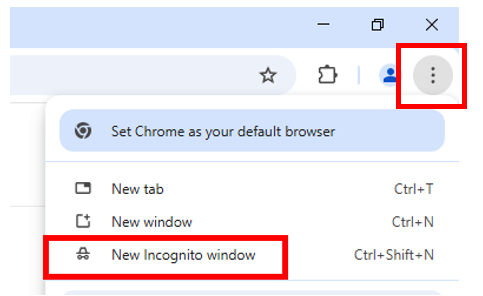
  • Click on the 3 dots, in the top right-hand corner of the window
  • Click on New Incognito window
Picture 21, Picture
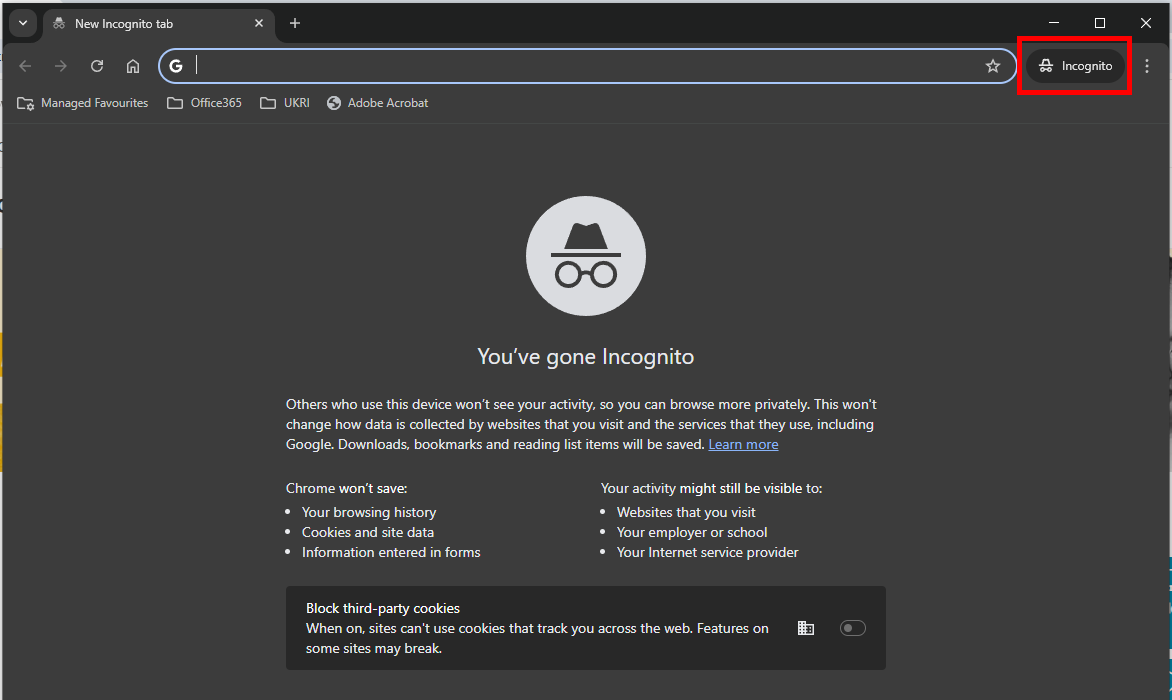
  • A new Incognito window will open. You can use this window in the same way as any normal browser window
  • You can tell it’s an Incognito window by the logo in the top right-hand corner of the window
Picture 40, Picture


Safari

  • Open a Safari window
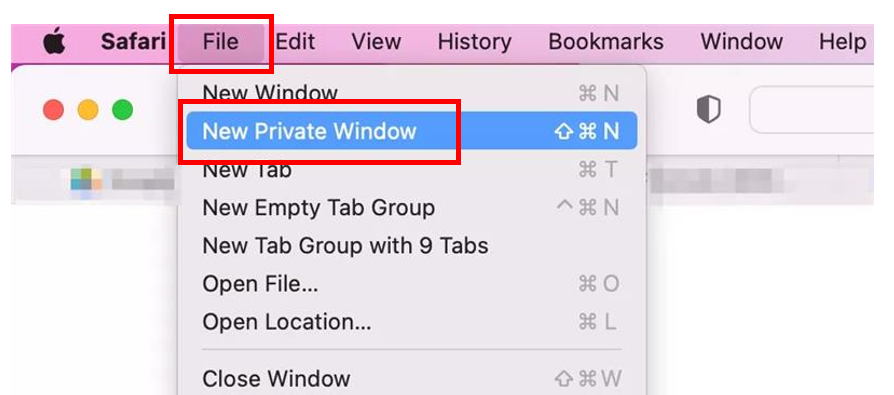
  • Click on File
  • Click on New Private Window
Picture 9, Picture
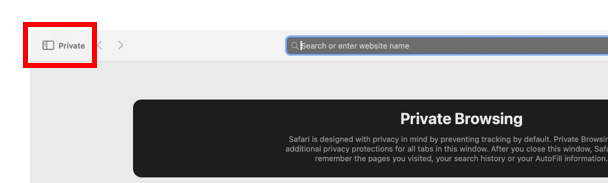
  • A new Private window will open. You can use this window in the same way as any normal browser window

  • You can tell it’s a Private window by the logo at the top of the window
Picture 11, Picture


Edge

  • Open an Edge window
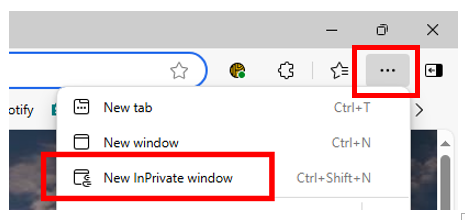
  • Click on the 3 dots, in the top right-hand corner of the window 
  • Click on New InPrivate window 
Picture 1, Picture
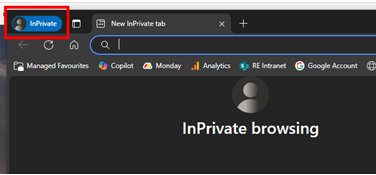
  • A new InPrivate window will open. You can use this window in the same way as any normal browser window

  • You can tell it’s an InPrivate window by the logo in the top left-hand corner of the window

Picture 45, Picture


Firefox

  • Open a Firefox window
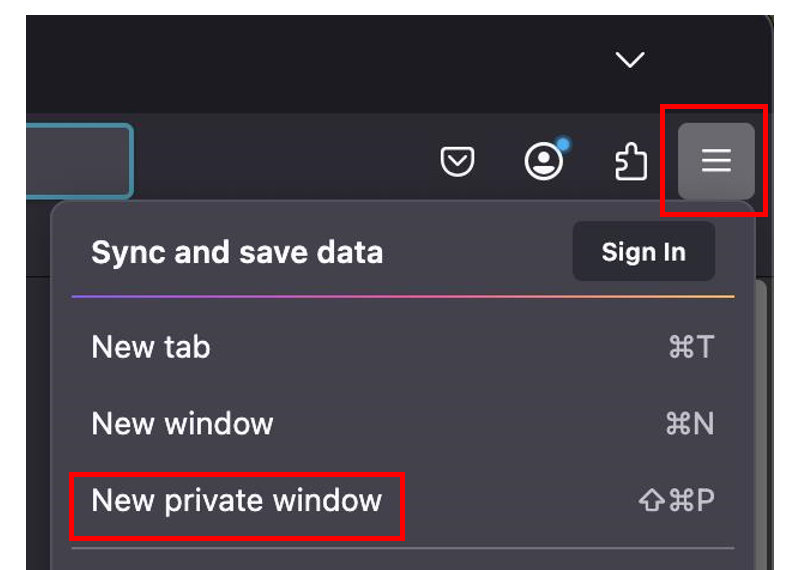
  • Click on the hamburger menu in the top right-hand corner of the window
  • Click on New private window
Picture 16, Picture
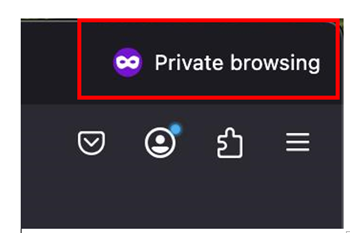
  • A new Private window will open. You can use this window in the same way as any normal browser window
  • You can tell it’s a Private window by the logo in the top right-hand corner of the window
Picture 19, Picture


We want to make these articles as helpful as possible so please use the Yes/No buttons below to give us feedback.

Was this article helpful?

That’s Great!

Thank you for your feedback

Sorry! We couldn't be helpful

Thank you for your feedback

Let us know how can we improve this article!

Select at least one of the reasons
CAPTCHA verification is required.

Feedback sent

We appreciate your effort and will try to fix the article