Find meeting details and join a virtual meeting

Modified on Wed, 22 Oct at 10:00 AM

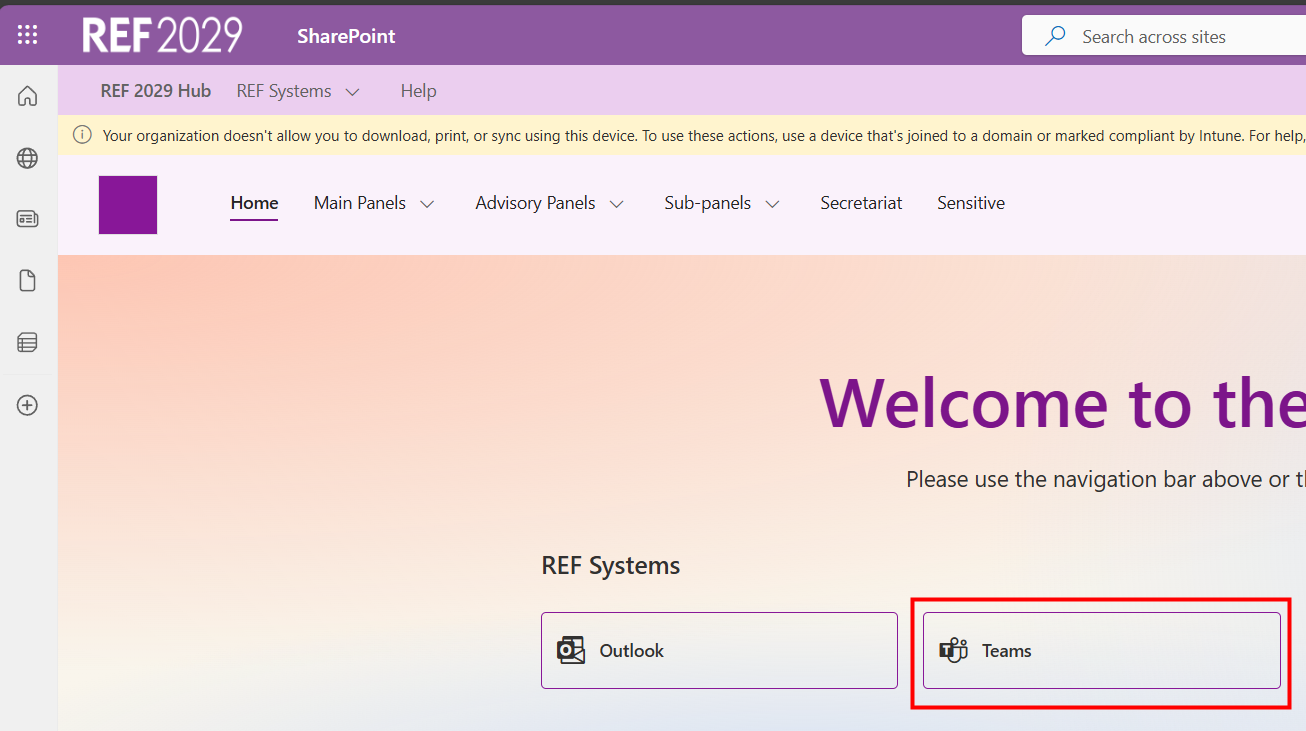
All REF virtual meetings are run using Teams and you'll find the details in the calendar in Teams or in Outlook within your REF account.


To join a virtual meeting you must sign in to the REF Hub to join a virtual meeting. If you have forwarded an invitation to your organisation account you may see a Join link there but you can't join a REF meeting from your organisation account. 


We recommend using the appointment in your Teams calendar to join a virtual meeting. If you join from the Outlook calendar you may be prompted to sign in again. 


To join a Teams meeting: 

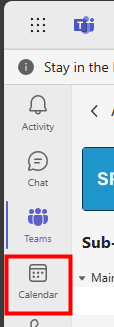
  • In Teams, click on the Calendar section
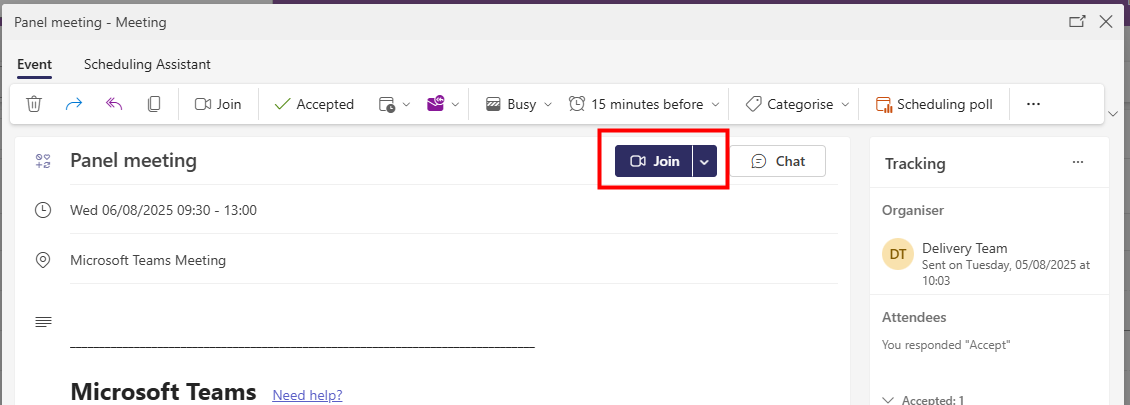
  • To see the meeting details, find the appointment in your calendar and double click on it
  • You can join the meeting by clicking on the Join button
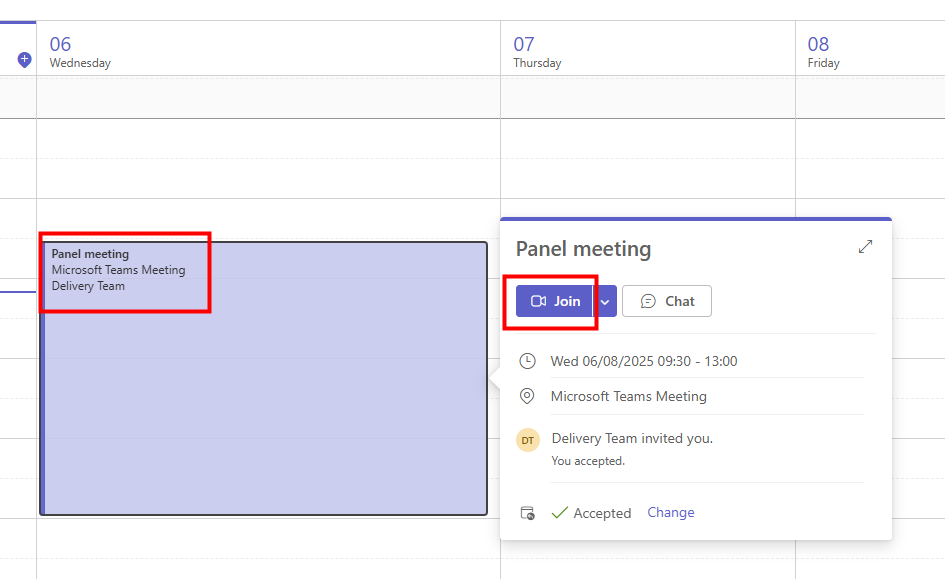
  • Another way to join the meeting is to find the appointment in your calendar and click on it once
  • Click on the Join button
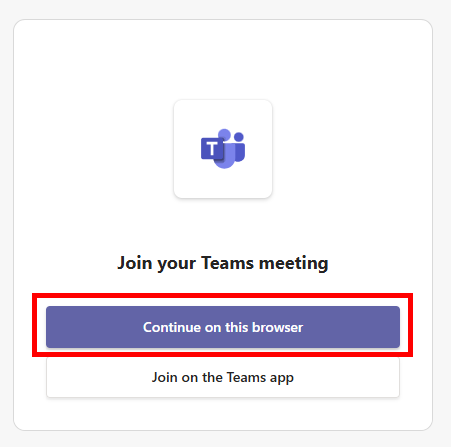
  • If this box appears, click on Continue on this browser (you must work online in the REF Hub)
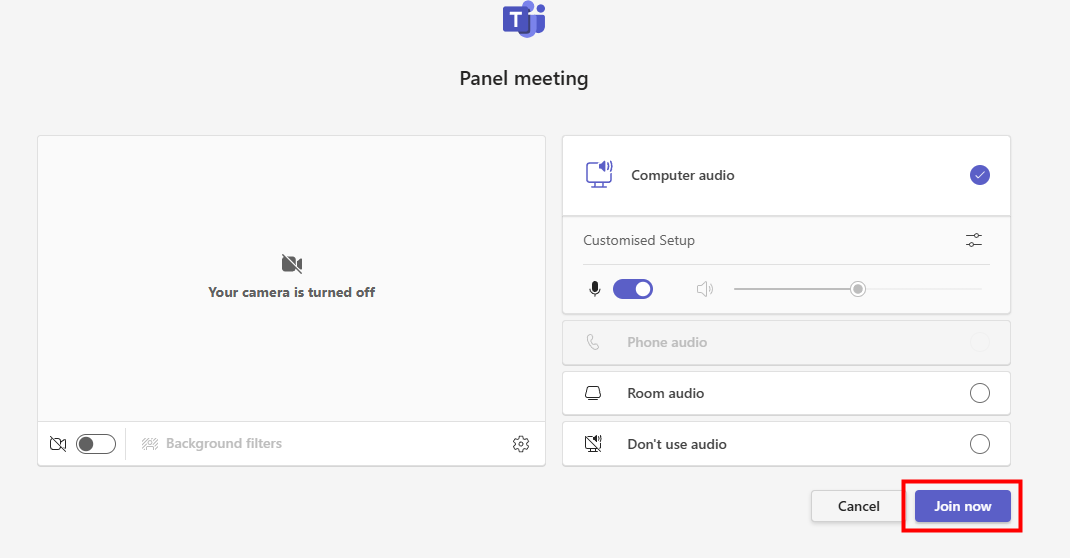
  • You can use this window to change your camera and audio settings
  • When you're ready to join the meeting click on Join now
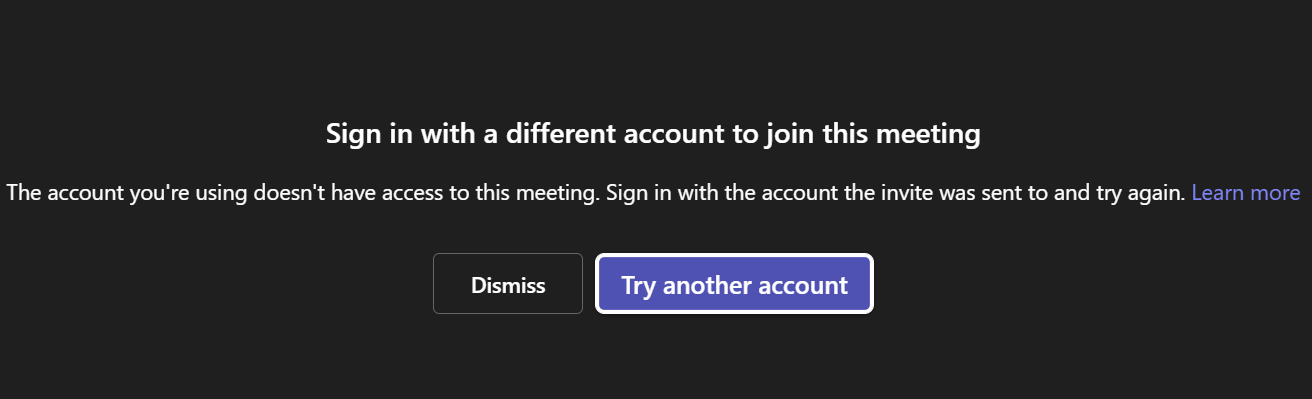
If you don't see an error message you can skip this step.
  • If you get an error message saying Sign in with a different account to join this meeting, you have been redirected out of the REF Hub


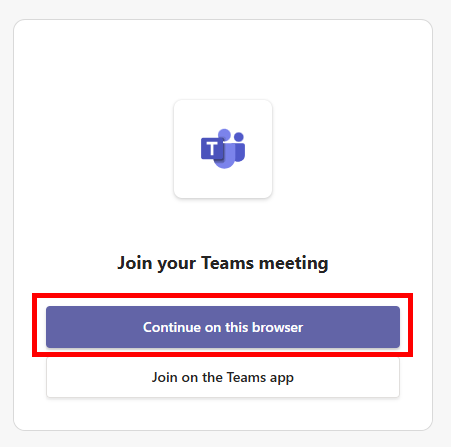
  • To get back in to the REF Hub, navigate to your REF Hub window and you should have a Teams tab titled Join your Teams meeting, in this tab, click Continue on this browser

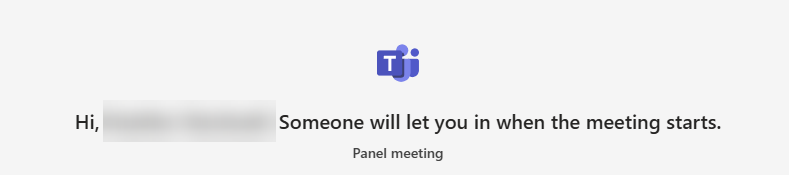
  • The message "Hi (your name). Someone will let you in when the meeting starts." will appear at the top of the settings. You will have to wait until a member of the panel executive allows you in to the meeting
  • If you are a member of the panel executive you will enter the meeting straight away, without being held in the lobby  


If you haven't used Teams before we suggest you read these hints for attending a virtual meeting.


We want to make these articles as helpful as possible so please use the Yes/No buttons below to send us feedback.


Was this article helpful?

That’s Great!

Thank you for your feedback

Sorry! We couldn't be helpful

Thank you for your feedback

Let us know how can we improve this article!

Select at least one of the reasons
CAPTCHA verification is required.

Feedback sent

We appreciate your effort and will try to fix the article