Create a new meeting, send out invitations and track responses

Modified on Tue, 25 Nov at 11:16 AM

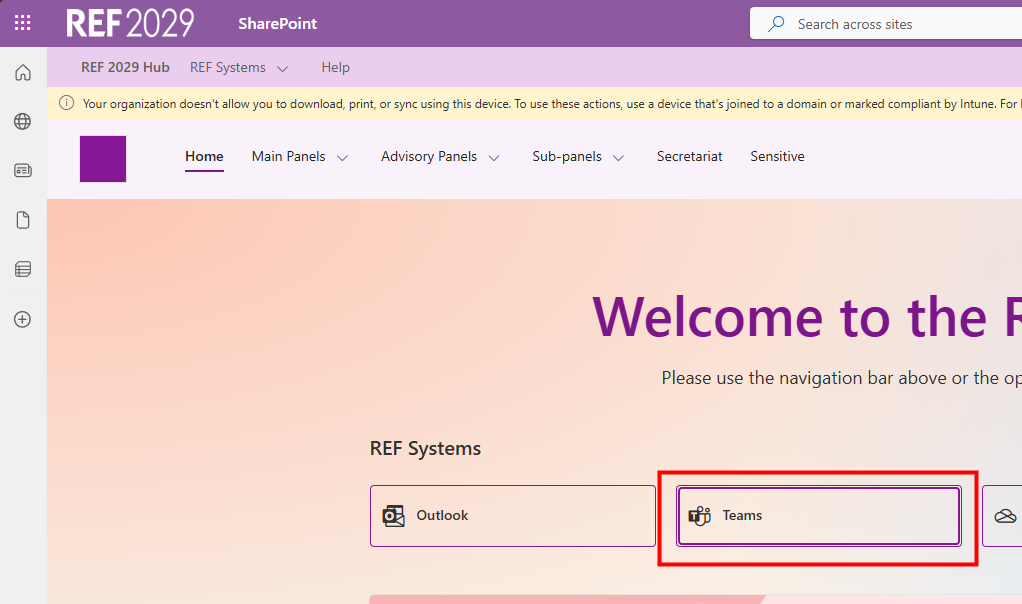
It's easiest to use Teams to send out new meeting invitations. 

You can use the panel distribution lists but it's easier to track responses if you add people individually to the invitation.


Create and send out a meeting invitation

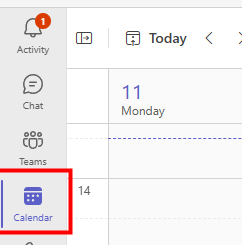
  • In Teams, click to open the Calendar section
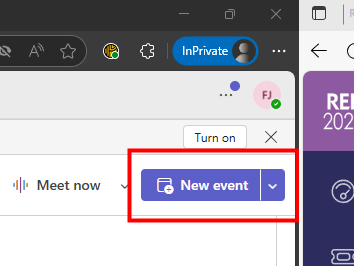
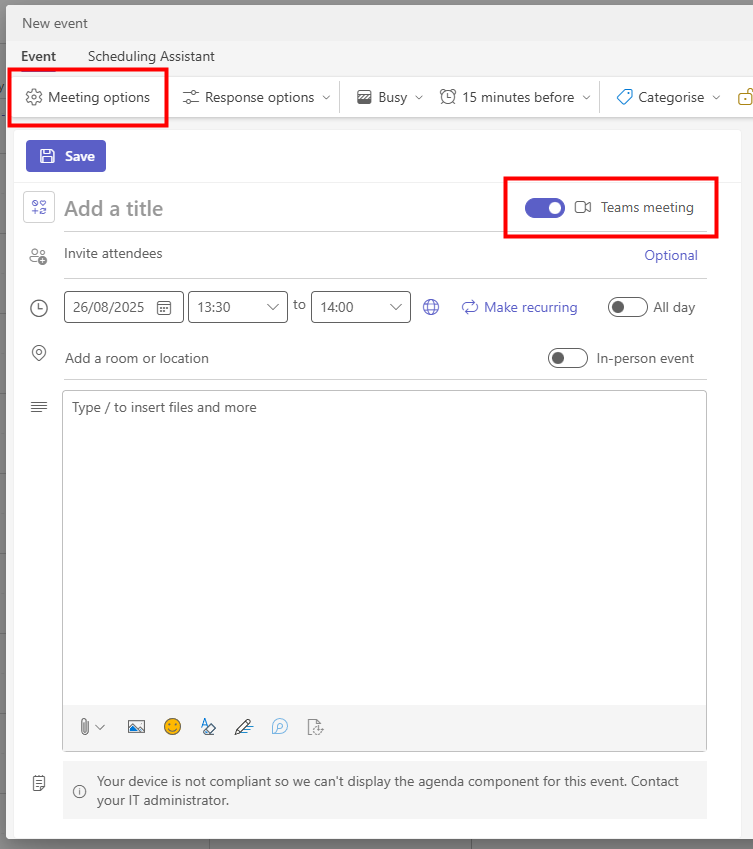
  • Click on New event, in the top right-hand corner of the window 
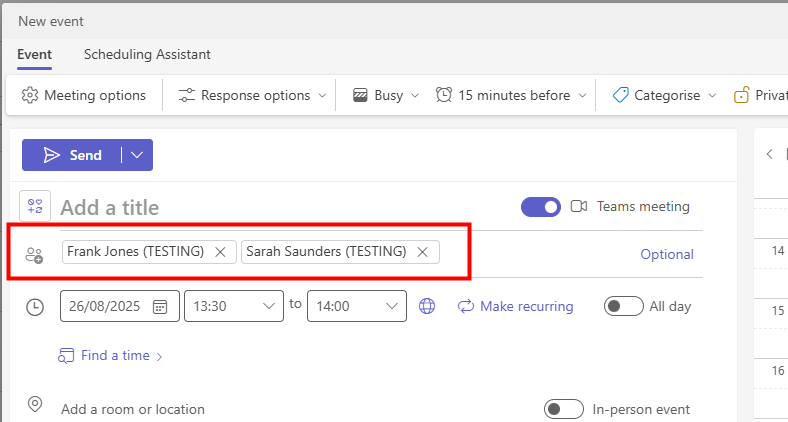
  • When you're adding the meeting attendees we recommend adding them individually as this makes it easier to track responses (if you use the panel distribution lists it will make it harder to see who has responded)
  • Enter the details of the meeting
  • For a virtual meeting, make sure to switch on the Teams meeting option
  • You will also need to click on Meeting options to add the any co-organisers, (see below)
All meetings have a virtual lobby enabled so only the meeting organiser and co-organisers can admit people in to the meeting. 
We recommend adding at least two co-organisers in case, for any reason, you (as the meeting organiser) can't attend the meeting.

To add co-organisers: 
  • In the New event window, click on Meeting options (see above)
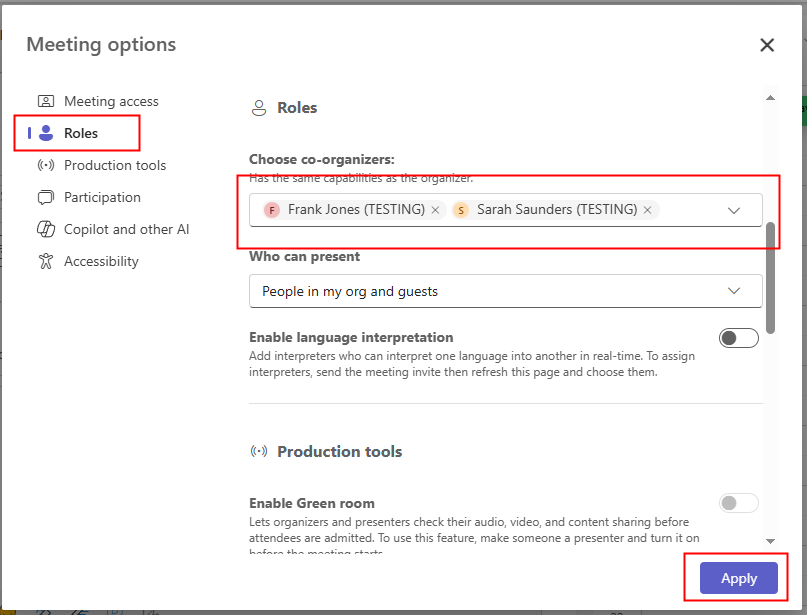
  • Click in the Roles section
  • Click in the Choose co-organizers field and type in the names of the relevant people
  • Click on Apply 

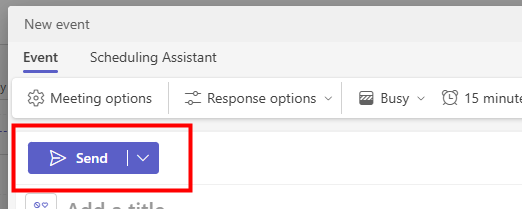
  • Once you've entered all the details click on Send to send out the invitations 


Track responses

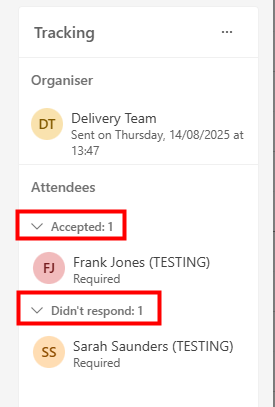
  • Once you've sent out the invitation you can track responses by opening it in Teams or Outlook 
  • In Teams/Outlook, click on the Calendar section
  • Find the appointment and double click on it to open it
  • The pane, on the right-hand side of the screen, will show who has responded and who hasn't


We want to make these articles as helpful as possible so please use the Yes/No buttons below to send us feedback.

Was this article helpful?

That’s Great!

Thank you for your feedback

Sorry! We couldn't be helpful

Thank you for your feedback

Let us know how can we improve this article!

Select at least one of the reasons
CAPTCHA verification is required.

Feedback sent

We appreciate your effort and will try to fix the article