When you change your phone you will need to set up the second level of authentication again to access your REF account. What you do will depend on whether you have access to your old phone or not.
If you have access to your old phone:
The two available methods are:
- Use the Microsoft Authenticator app on your mobile phone
- Use an alternative authenticator app on your mobile phone
How to set up each method is described below. Once you've decided on a method please follow the relevant guidance below.
If you have any problems with these steps please contact the REF team at usersupport@ref.ac.uk.
Use the Microsoft Authenticator app on your mobile phone
This method uses the Microsoft Authenticator app on your mobile phone.
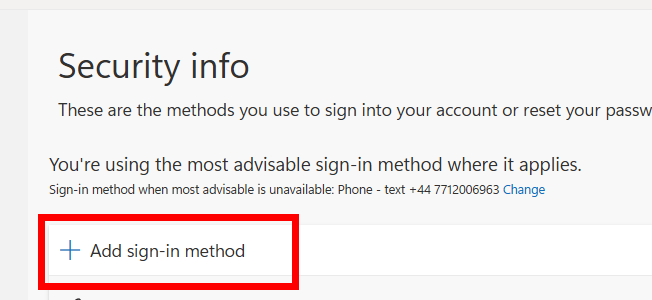
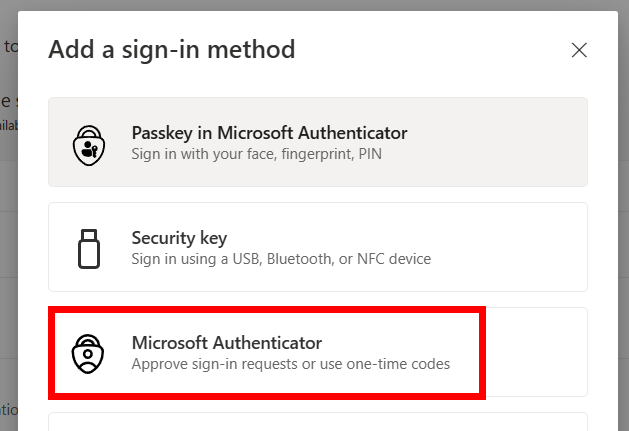
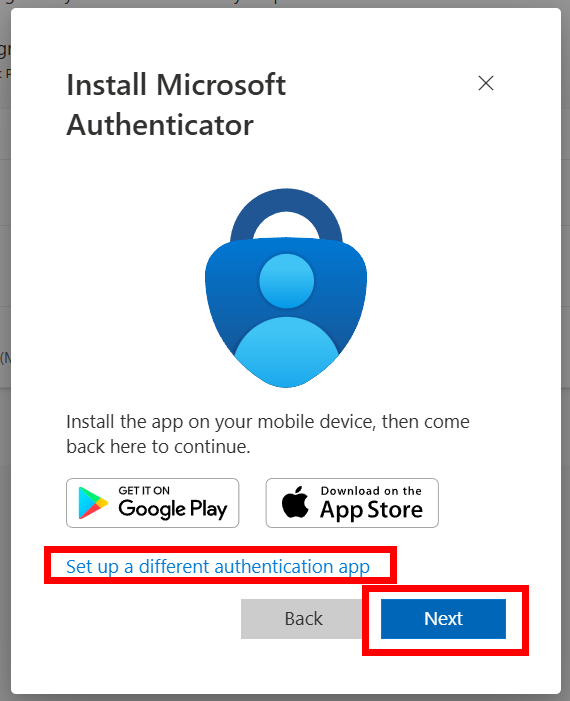
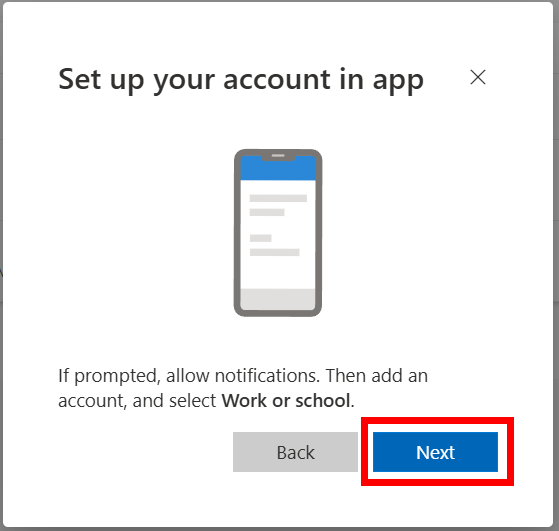
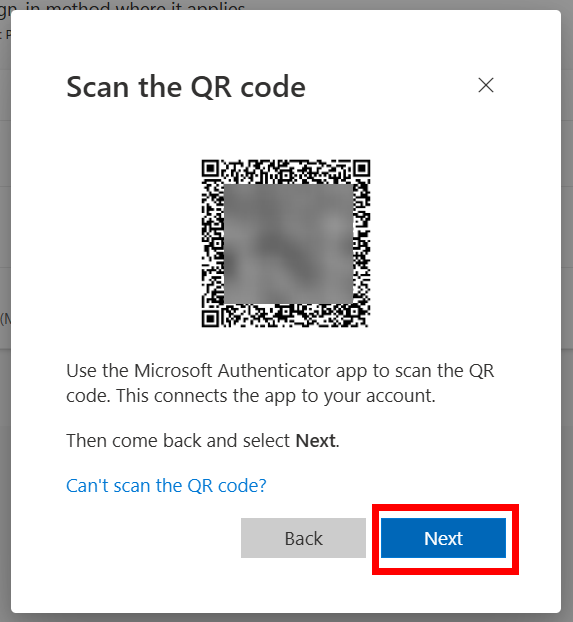
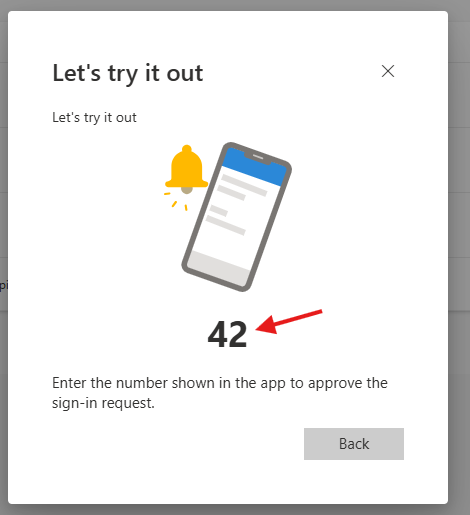
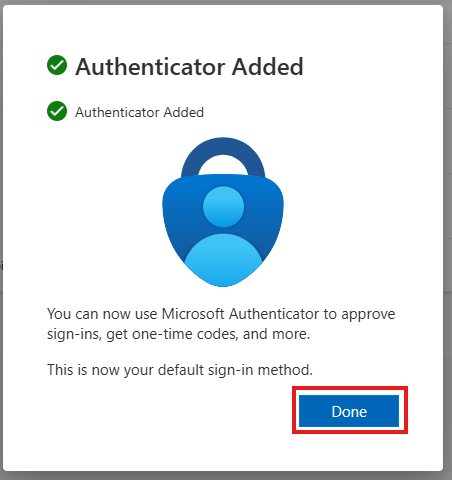
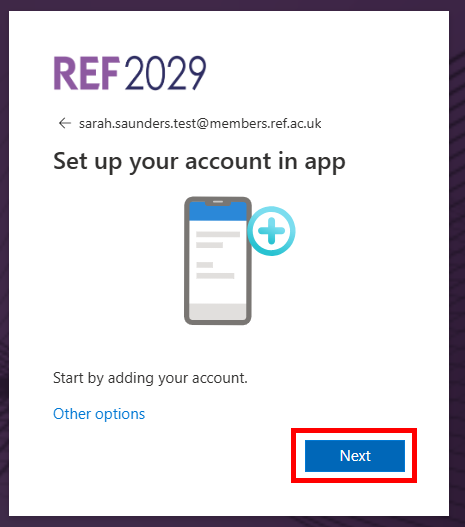
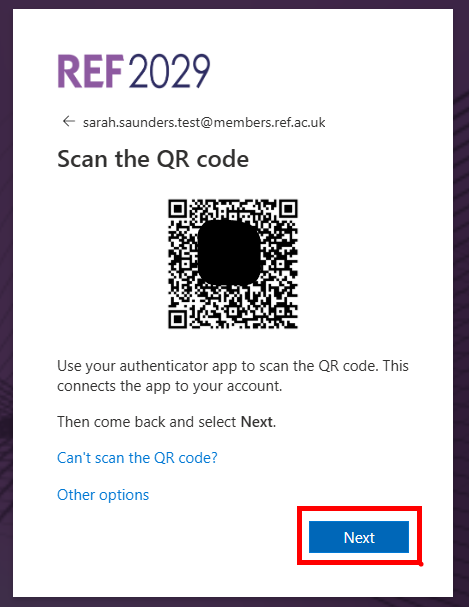
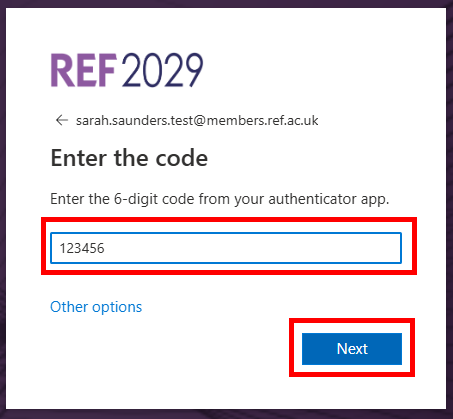
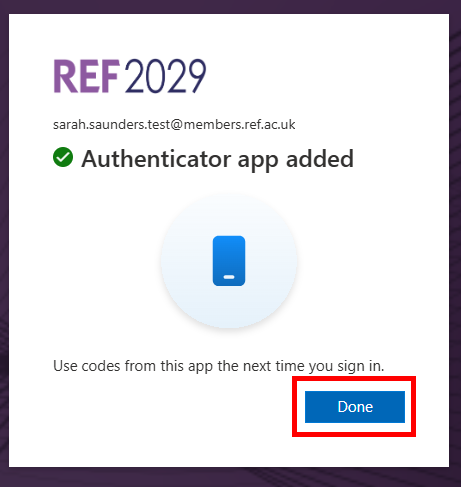
If you don’t already have the Microsoft Authenticator app installed you will need to download it to your phone. Once you have the app on your phone, follow the instructions in the table below.
If you already have the Microsoft Authenticator app on your mobile phone, follow the instructions in the table below.
|  |
|  |
|  |
|  |
|  |
|  |
|  |
Use an alternative authenticator app
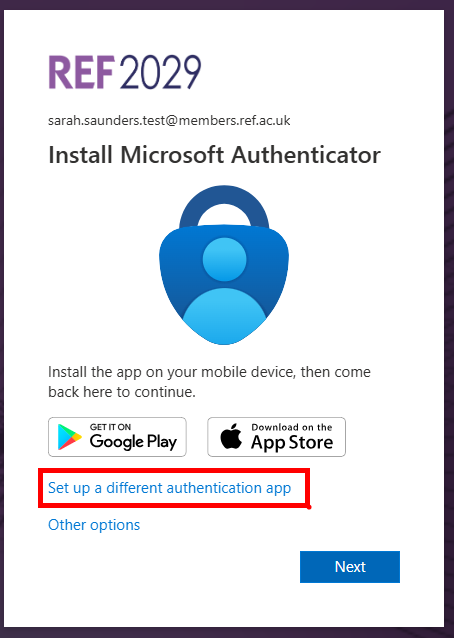
This method uses an alternative authenticator app on your mobile phone, (anything other than the Microsoft Authenticator app). If you already use a different authenticator app on your mobile phone, you can use that to authenticate yourself.
|
|
|
|
|
|
|
|
|
|
If you don't have access to your old phone:
- If you don't have access to your old phone please email the REF team at usersupport@ref.ac.uk and we will reset the authentication app for you so you can set it up again
Was this article helpful?
That’s Great!
Thank you for your feedback
Sorry! We couldn't be helpful
Thank you for your feedback
Feedback sent
We appreciate your effort and will try to fix the article