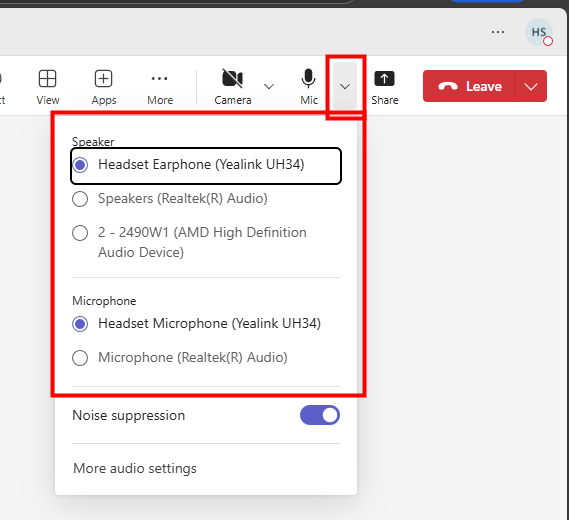
When you join a Teams meeting it's worth checking to make sure Teams has selected the correct audio settings. You can also change these settings once you're in a Teams meeting.
If you're having any problems with the sound in a Teams meeting it's also worth checking these settings, for example if the sound is coming out of the wrong speakers or if people can't hear you.
Before you join a Teams meeting
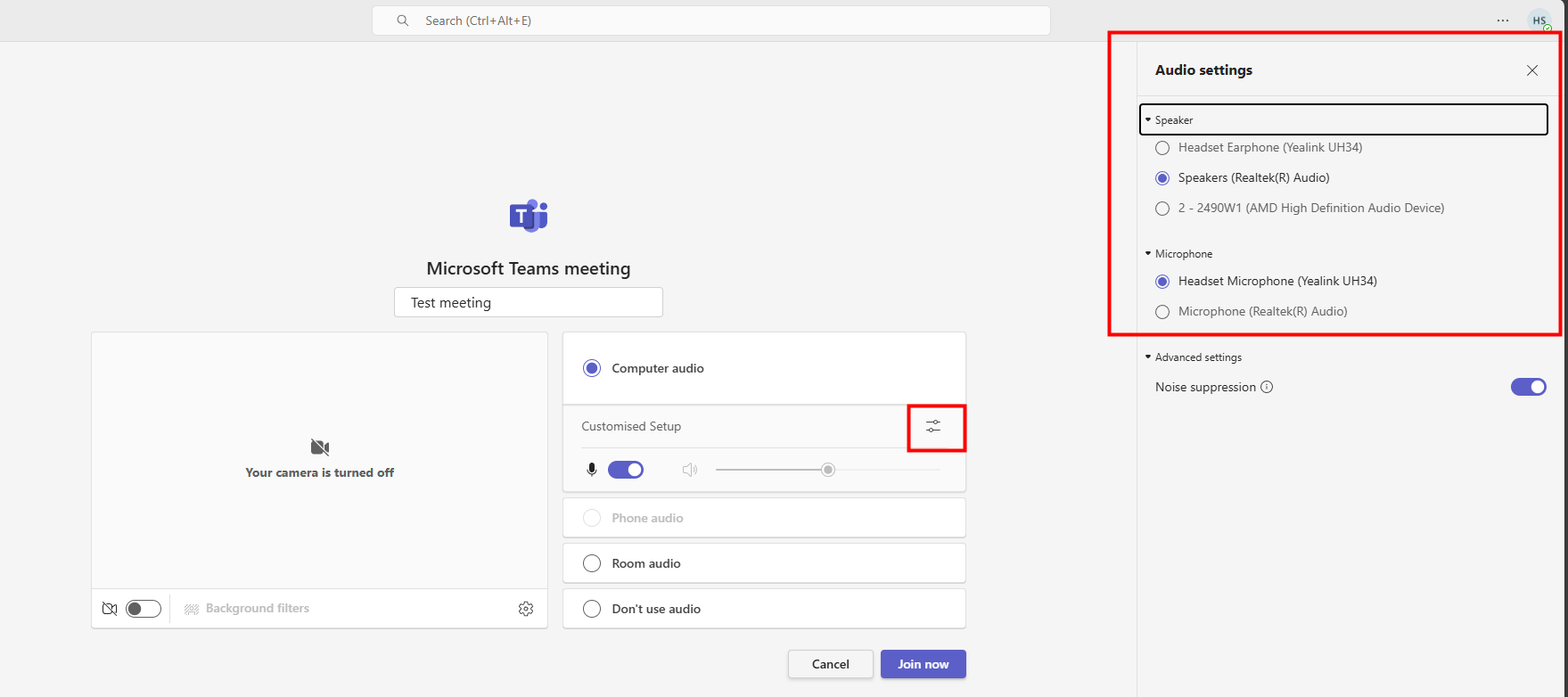
- When you click to join a Teams meeting this box appears
- Before you click to join it's worth checking that Teams is using the correct microphone and speaker - click on the two lines in the Computer audio section
- A panel will appear on the right where you can check and change your audio settings (for example, if you are using headphones then make sure your headphones are selected)
Once you're in a Teams meeting
|  |
We want to make these articles as helpful as possible so please use the Yes/No buttons below to send us feedback.
Was this article helpful?
That’s Great!
Thank you for your feedback
Sorry! We couldn't be helpful
Thank you for your feedback
Feedback sent
We appreciate your effort and will try to fix the article