Auto-forward formal meeting invites to your organisation email address

Modified on Tue, 14 Oct at 10:20 AM

You can auto-forward the following meetings to your organisation email address so that you can see the invitations in your organisation email address: 

  • Formal panel meeting invitations (those sent by the REF Delivery team)
  • Any meeting set up by panel advisors, (any meeting set up on or after 10 October 2025)


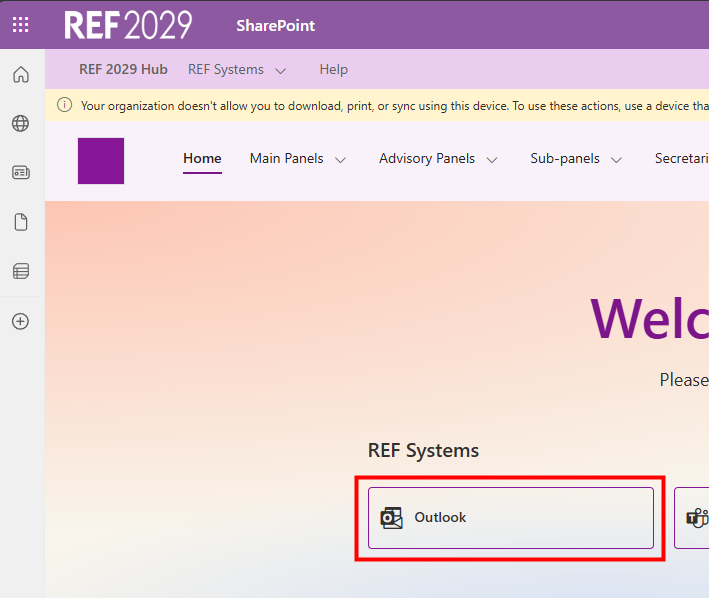
However, you must log on to the REF Hub and open Teams to join a virtual meeting. You cannot join the meeting from your organisation calendar.  


Do not forward official REF meetings on to any additional recipients (either externally or within the REF Hub). Contact admin@ref.ac.uk if you need to add any additional attendees.


To set up an auto-forward: 
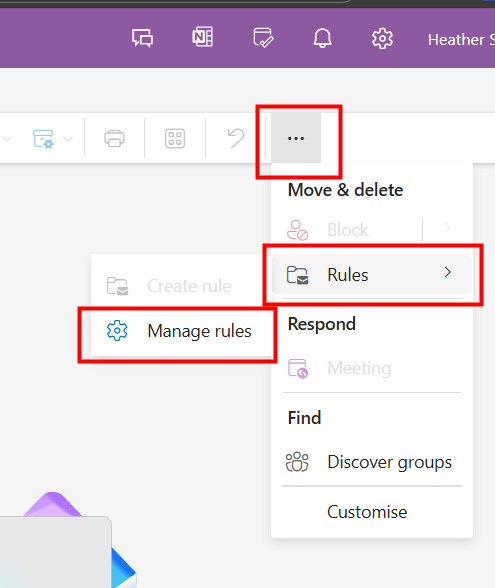
  • In Outlook, click on the 3 dots at the end of the toolbar
  • Click on Rules
  • Click on Manage rules
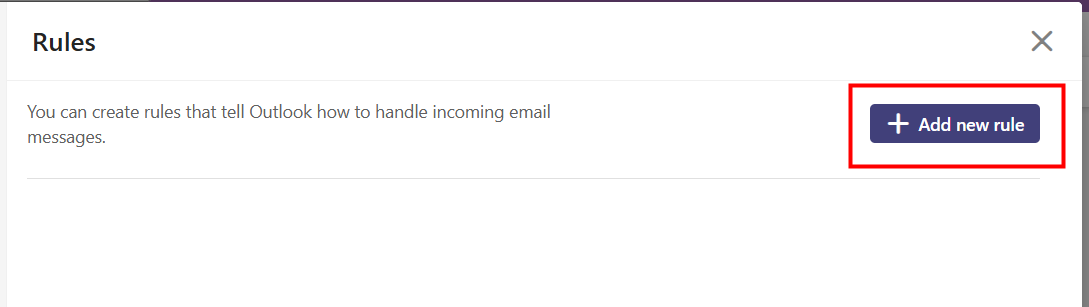
  • Click on +Add new rule
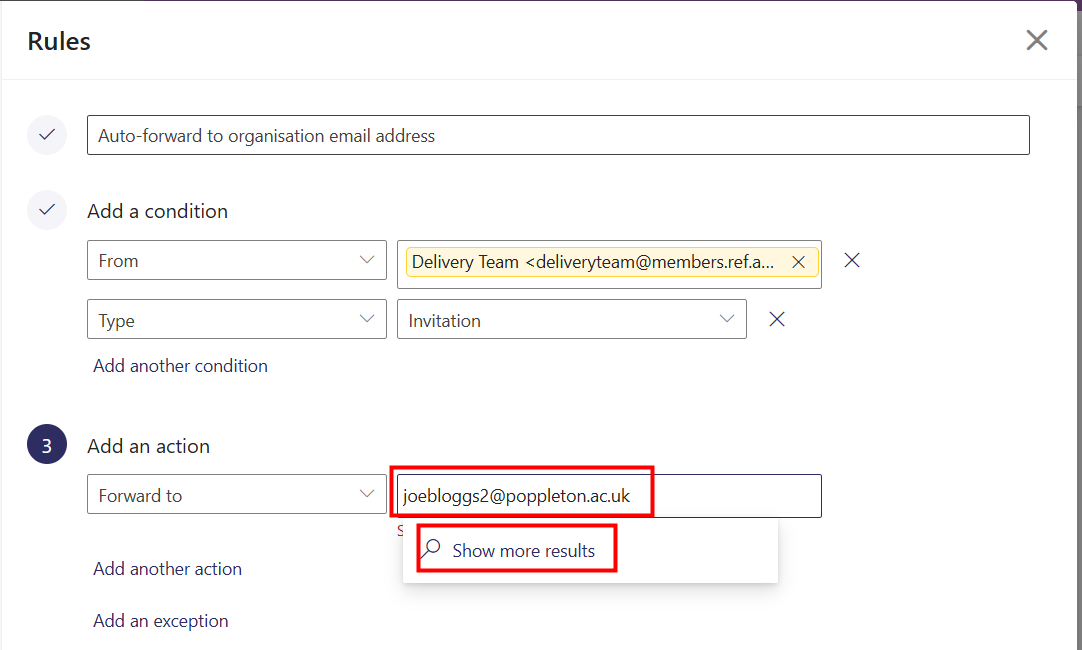
  • In the first field, type in a name for the rule
  • Under Add a condition add two conditions
    • Click in Select a condition  and select From and add the email address deliveryteam@members.ref.ac.uk (for invitations from a panel advisor, select their email address) 
    • Click on Add another condition and select Type and Invitation
  • Under Add an action 
    • Click on Select an action and select Forward to
    • In the second field, add in your organisational email address and click on 
    • Click on Show more results
    • Click on Use this address....
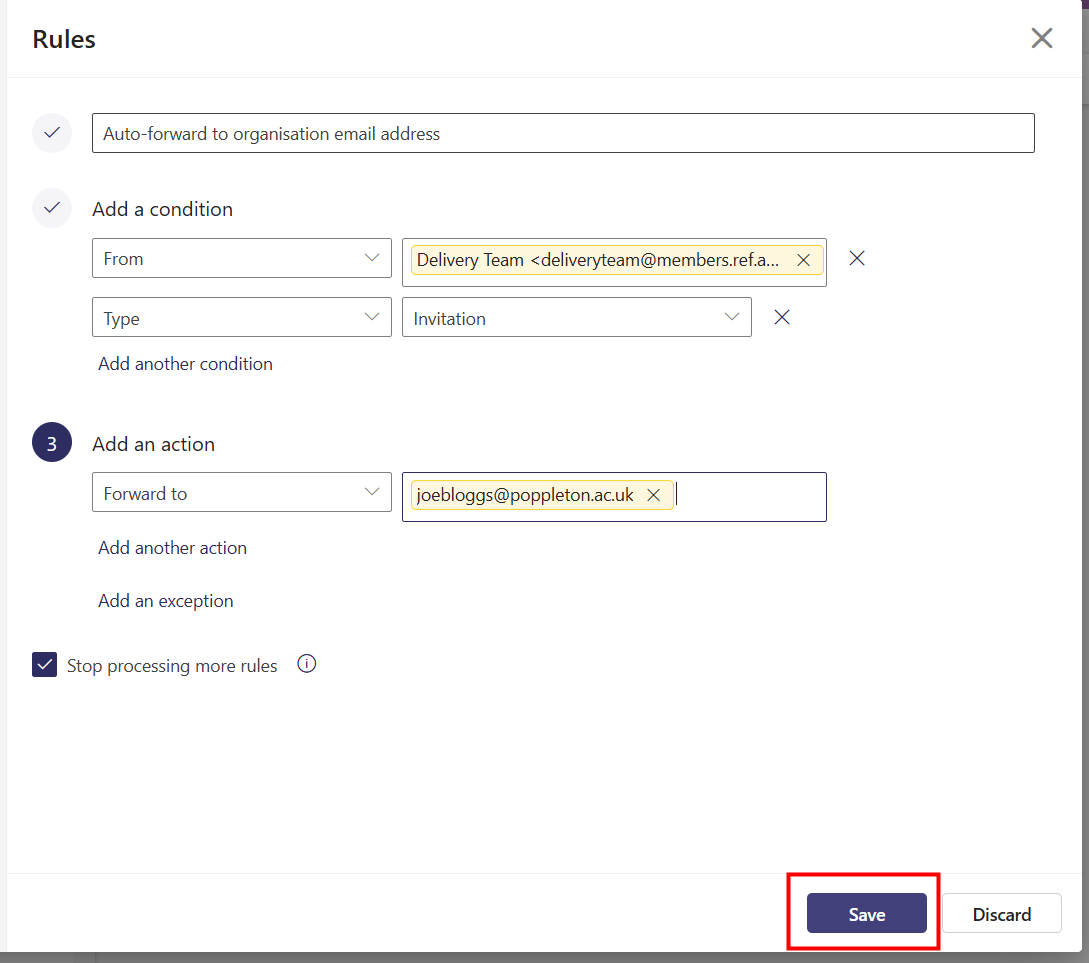
  • Click on Save
    • If the Save button is greyed out then please check the steps above to ensure all the fields are complete
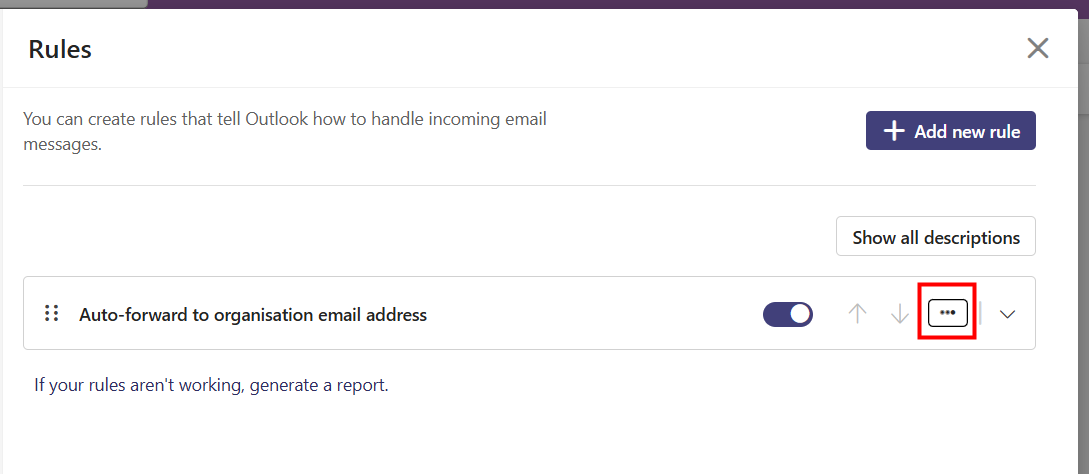
  • Once your rule has been created it will appear in a list like this
  • You can click on the 3 dots to run the rule now or to edit the rule
  • If you are happy with your rule you can click on the X, in the top right-hand corner, to close this window

All invitations from deliveryteam@members.ref.ac.uk will now be automatically forwarded to your organisational email address. 


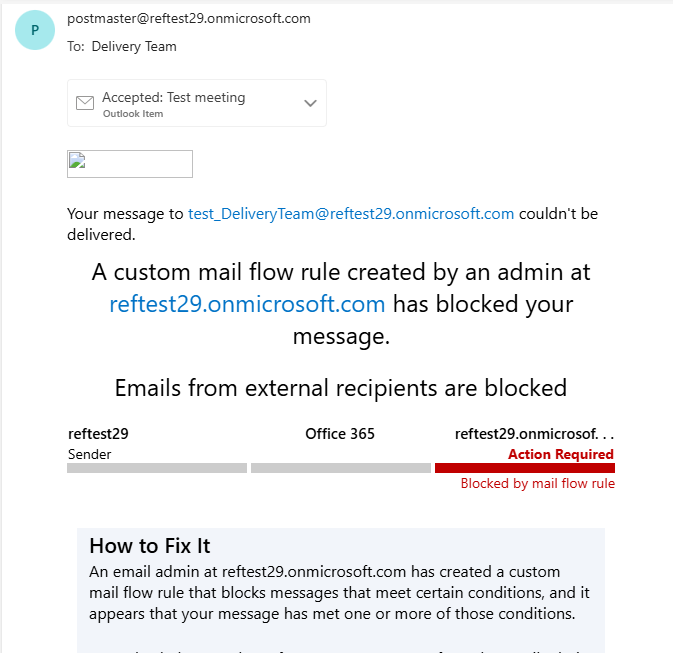
Postmaster message

Once you have forwarded an invitation you may get a bounce back message like this - you can ignore this.


We want to make these articles as helpful as possible so please use the Yes/No buttons below to send us feedback.

Was this article helpful?

That’s Great!

Thank you for your feedback

Sorry! We couldn't be helpful

Thank you for your feedback

Let us know how can we improve this article!

Select at least one of the reasons
CAPTCHA verification is required.

Feedback sent

We appreciate your effort and will try to fix the article