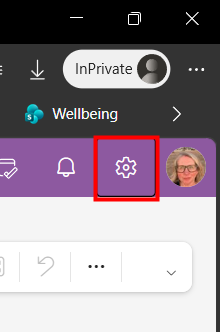
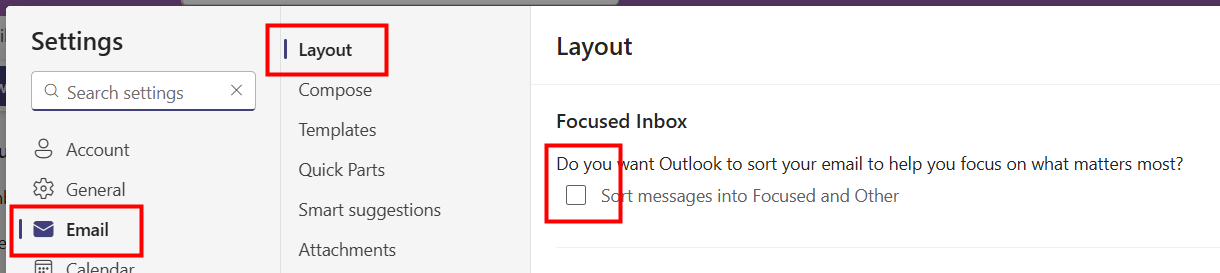
The Focused Inbox, in Outlook, automatically splits your emails into two tabs - Focused and Other. The idea is to keep your most important messages in the Focused area. However, if you find this feature unhelpful you can switch it off.
|  |
|  |
We want to make these articles as helpful as possible, so please use the Yes/No buttons below to send us feedback.
Was this article helpful?
That’s Great!
Thank you for your feedback
Sorry! We couldn't be helpful
Thank you for your feedback
Feedback sent
We appreciate your effort and will try to fix the article