Save a copy of meeting documents or any file

Modified on Wed, 8 Oct at 11:10 AM

You can access all documents for meetings from the relevant shared area but, if you want to make any notes on the documents please save your own copy first so that the master copy remains clean. 


Because of the rules placed on the REF Hub you can't use the Create a Copy function so we suggest using this method to create your own copy.


Save a copy of any Microsoft Office file (Word, Excel, PowerPoint)
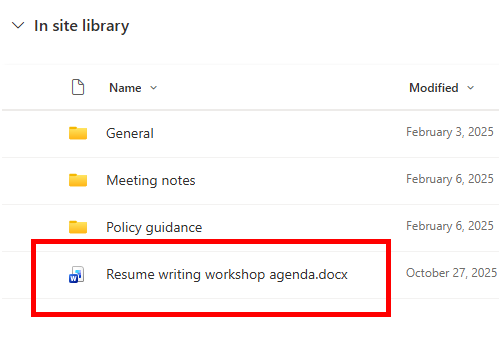

  • Open the document from the shared area
  • Hold down the CTRL key on a Windows device (or command on a Mac), on your keyboard, and press A, (this will select all the text in the document)
  • Copy the text, (right click and click on Copy or press CTRL + C on Windows, and command + C on a Mac)
  • Create a new file of the same file type (i.e. Word doc, Excel spreadsheet)
  • Paste the content in to the new file
  • The document will automatically save in your My Files area but you can click at the top to change the file name 


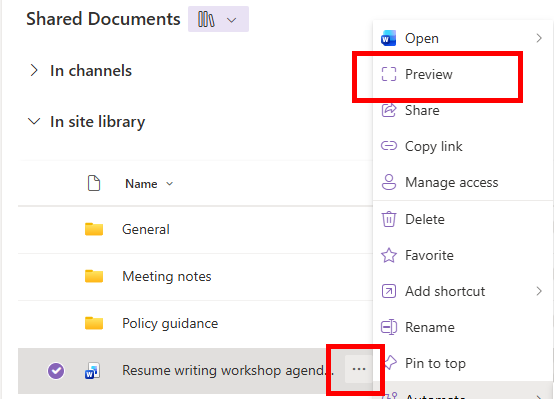
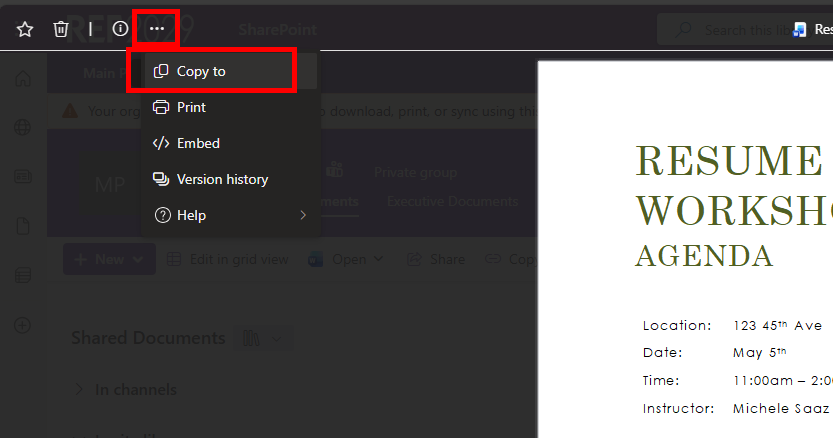
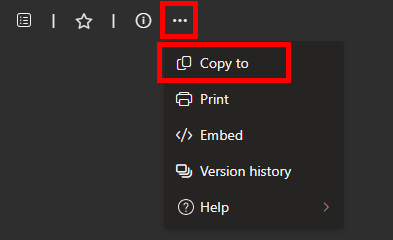
Save a copy of a PDF


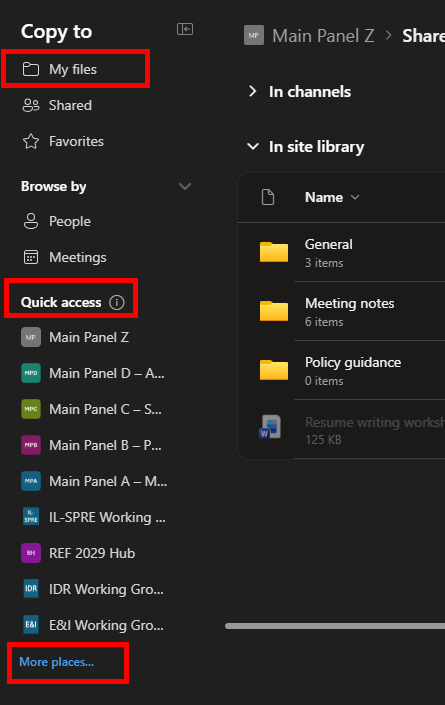
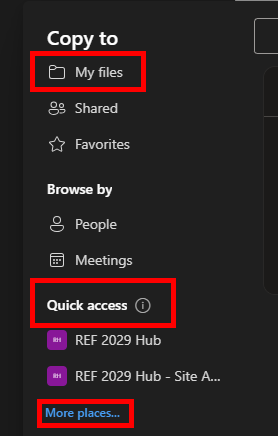
  • In the pop-up window, select the space you would like to save the copy to:
    • My files is in the OneDrive area and is a space that only you have access to
    • Spaces listed under Quick access are SharePoint sites, and all members of these groups will have access to files saved there
    • You can use the More places... option to see SharePoint sites not listed under quick access
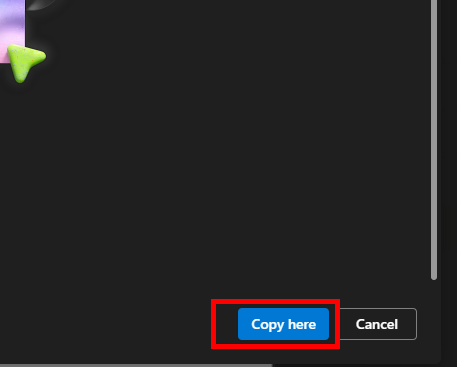
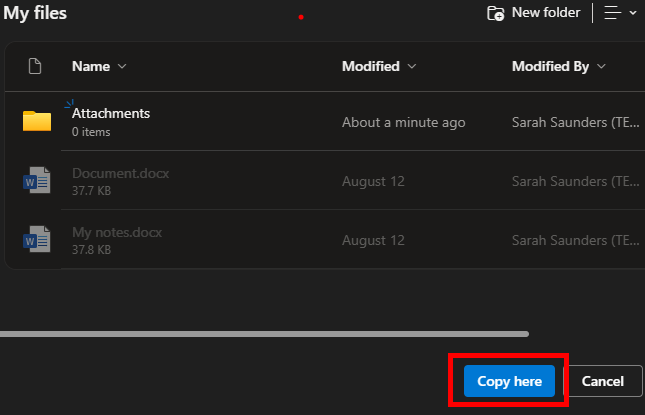
  • Once you have selected where you would like to save the copied PDF, click the Copy here button in the bottom right-hand corner of the pop-up


We want to make these articles as helpful as possible so please use the Yes/No buttons below to send us feedback.

Was this article helpful?

That’s Great!

Thank you for your feedback

Sorry! We couldn't be helpful

Thank you for your feedback

Let us know how can we improve this article!

Select at least one of the reasons
CAPTCHA verification is required.

Feedback sent

We appreciate your effort and will try to fix the article