Share a file with someone else

Modified on Thu, 30 Oct at 12:10 PM

If you have a personal file saved in the My files area and you want someone else within the REF to see it you can share it so that you're working on the same file.


You can view a list of files that have been shared with you in OneDrive


NOTE: If you are sharing a file with many people or an entire group, it may be easier to move the file to a SharePoint group that all those people or group can access.


Share from OneDrive


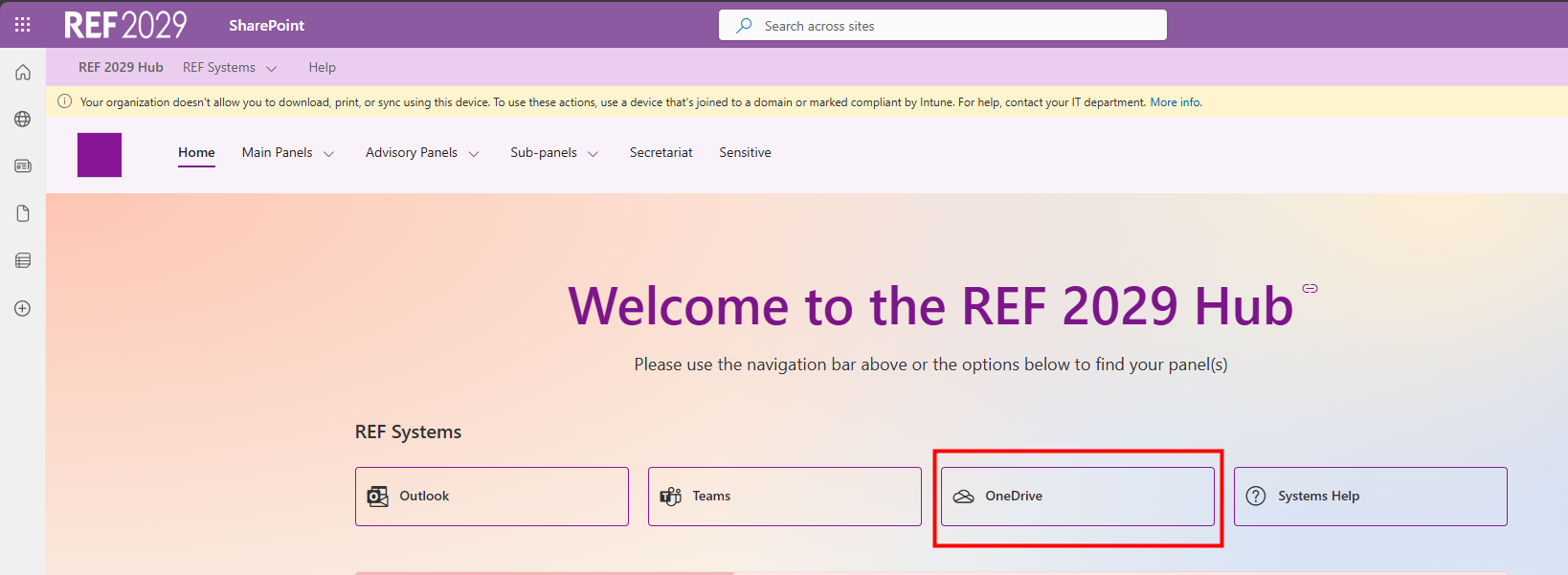
  • From the REF Hub home page, click on the OneDrive button
  • A OneDrive window will open in a separate tab

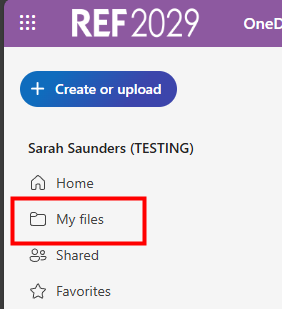
  • Click on My files
  • Find the file in the My files area
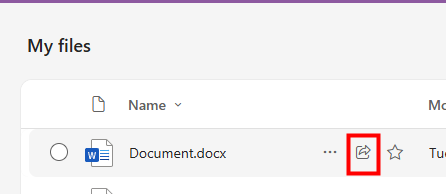
  • Click on the share icon to the right of the file name, (the icon with the arrow on it)
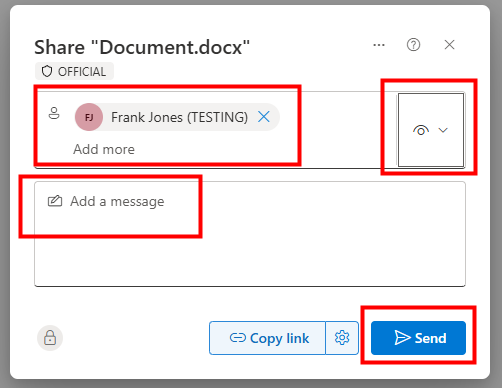
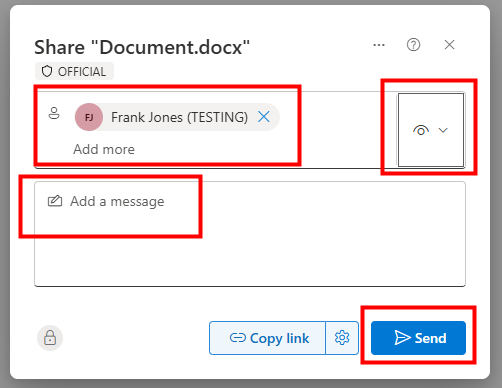
  • Click in the Add a name.. field and add the name(s) of the person/people you want to share with
  • Click on the eye icon, at the end of the row, to select their permissions, (do you want them to edit the file or just view it?)
  • Click to add a message, (this will appear in the email they receive)
  • Click on Send to send an email to them with a link to the file 


From within a file

  • Open the file you want to share
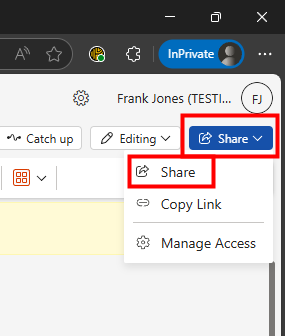
  • Click on the Share button, in the top right-hand corner of the file
  • Click on Share
  • Click in the Add a name.. field and add the name(s) of the person/people you want to share with
  • Click on the eye icon, at the end of the row, to select their permissions, (do you want them to edit the file or just view it?)
  • Click to add a message, (this will appear in the email they receive)
  • Click on Send to send an email to them with a link to the file


We want to make these articles as helpful as possible so please use the Yes/No buttons below to send us feedback.


Was this article helpful?

That’s Great!

Thank you for your feedback

Sorry! We couldn't be helpful

Thank you for your feedback

Let us know how can we improve this article!

Select at least one of the reasons
CAPTCHA verification is required.

Feedback sent

We appreciate your effort and will try to fix the article